 Skip to content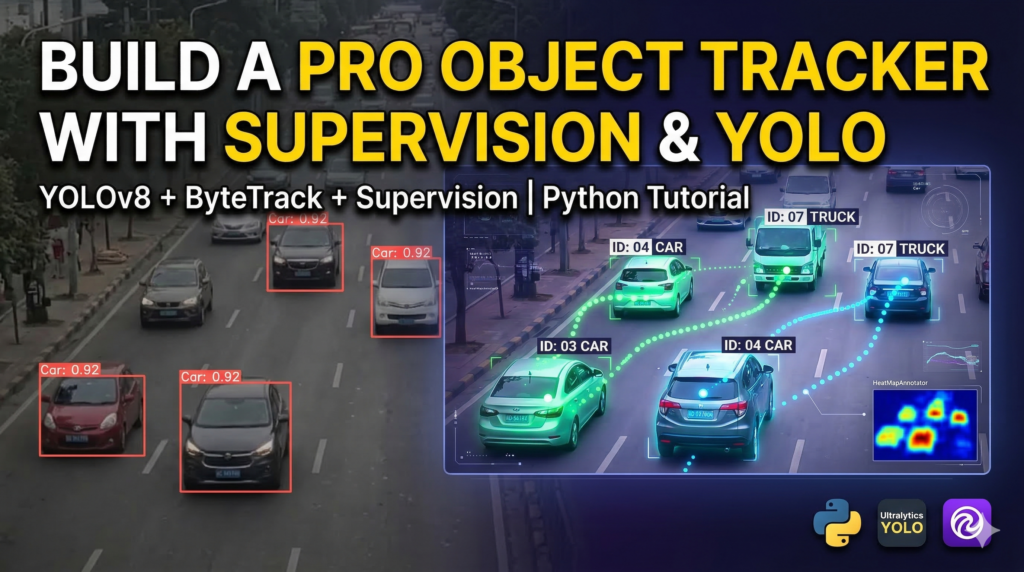
Last Updated on 20/03/2026 by Eran Feit
How to use Supervision with YOLOv8 is the most effective way to modernize your computer vision workflows by integrating the Ultralytics detection engine with a robust utility library. While YOLOv8 handles the heavy lifting of object detection and tracking, the Supervision library acts as the “Swiss Army Knife” for handling detections, filtering classes, and creating professional-grade visual overlays. We will move beyond basic bounding boxes to implement advanced features like real-time tracking, heatmaps, and custom frame annotations that are typically complex to code from scratch.
For any developer or researcher, the primary hurdle in computer vision isn’t just getting the model to “see,” but rather making that data actionable and visually clear. This tutorial adds immense value by providing a production-ready template that replaces hundreds of lines of manual OpenCV drawing with a few streamlined, high-level functions. By following this guide, you will significantly reduce the amount of boilerplate code required for common tasks like confidence filtering and video writing.
We achieve this by breaking the process down into four logical stages that mirror a real-world project lifecycle. We start with a modern environment setup using Python 3.12 and CUDA 12.8 to ensure your hardware is fully optimized for speed. From there, we transition into the core detection logic, where we convert raw model outputs into a unified detection format that is easy to manipulate and filter based on your specific project needs.
The final sections of this guide focus on the “visual storytelling” aspect of AI. You will learn how to implement advanced annotators—such as ByteTrack for persistent object IDs and heatmaps for spatial density analysis—using the native Supervision sinks. By the end of this guide, you will have a deep understanding of how to use Supervision with YOLOv8 to build sophisticated video analysis systems that look and perform like professional-grade software.
Why learning how to use Supervision with YOLOv8 is a game-changer for your projects
The transition from raw model predictions to a polished video output is often the most frustrating part of a computer vision project. Traditionally, developers had to write extensive loops and manually manage pixel coordinates just to draw a simple label or track a moving object across frames. When you master how to use Supervision with YOLOv8, you essentially gain a high-level API that treats detections as organized objects rather than just raw arrays of numbers. This shift in perspective allows you to focus on the logic of your application—like counting specific items or monitoring security zones—instead of getting bogged down in the math of coordinate geometry.
The primary target of this approach is to create a seamless bridge between the “detection engine” and the “visualization layer.” YOLOv8 is world-class at identifying objects quickly, but its raw output can be difficult to manage when you need to apply complex filters, such as only showing objects with 50% confidence or isolating specific COCO classes like dogs or vehicles. Supervision provides a standardized “Detections” object that acts as a universal language. This means you can swap models or update your detection logic without ever having to rewrite your visualization or tracking code, making your entire codebase much more maintainable and scalable.
At a high level, this integration is about efficiency and professional aesthetics. By using specialized annotators like the TraceAnnotator or HeatMapAnnotator, you can generate insights that are impossible to see in a standard video feed. You aren’t just drawing boxes; you are mapping the historical path of an object or identifying “hot zones” where activity is most frequent. This level of detail is exactly what separates a basic hobbyist project from a professional AI solution. Understanding how to use Supervision with YOLOv8 ensures that your output is not only accurate but also visually compelling and ready for real-world deployment.

Mastering Modern Computer Vision Workflows with YOLOv8 and Supervision
Building a professional-grade object detection pipeline in 2026 requires more than just a pre-trained model; it requires a sophisticated way to manage, filter, and visualize data without drowning in hundreds of lines of manual OpenCV drawing code. The primary target of this tutorial is to bridge the gap between raw AI predictions and actionable visual intelligence. By leveraging the specific synergy between Ultralytics YOLOv8 and the Supervision utility library, we create a streamlined environment where complex tasks—like tracking individual objects across frames or generating density heatmaps—become high-level function calls rather than geometric math problems.
This code is designed to serve as a complete, end-to-end framework for developers who need to move beyond simple “out-of-the-box” detection. The core logic focuses on converting raw model outputs into a unified sv.Detections format, which allows for effortless filtering by class ID or confidence scores. For instance, the script includes logic to isolate specific objects, such as identifying only dogs within a crowded scene, while simultaneously applying a 0.5 confidence threshold to ensure high-accuracy results. This level of granular control is what separates a basic demo from a deployment-ready application.
Beyond simple detection, the script implements an advanced visualization layer that covers seven distinct types of annotators, including circular, triangular, and even blur-based masking for privacy-focused projects. This variety is critical for modern computer vision tasks where different stakeholders need different visual outputs—whether it’s a sleek “Round Box” for a mobile app UI or a “Blur Annotator” to meet GDPR compliance standards in European markets. By standardizing these visual outputs, the code ensures that your AI’s results are not only technically accurate but also professionally presented.
The final phases of the tutorial introduce temporal intelligence through multi-object tracking and spatial analysis. By integrating the ByteTrack algorithm, the script enables the system to maintain a “memory” of objects as they move through the frame, assigning unique IDs that persist even during temporary occlusions. When combined with the HeatMap and Trace annotators, the code transforms a standard video feed into a rich data map, showing exactly where objects have been and where they are clustering most frequently. This comprehensive approach provides a powerful toolkit for building everything from security monitoring systems to retail analytics software.
Link to the video tutorial here .
Download the code for the tutorial here or here .
Best AI Photo Tools (Backgrounds, Objects, Headshots)


My Blog
Link for Medium users here .
Want to get started with Computer Vision or take your skills to the next level ?
Great Interactive Course : “Deep Learning for Images with PyTorch” here
If you’re just beginning, I recommend this step-by-step course designed to introduce you to the foundations of Computer Vision – Complete Computer Vision Bootcamp With PyTorch & TensorFlow
If you’re already experienced and looking for more advanced techniques, check out this deep-dive course – Modern Computer Vision GPT, PyTorch, Keras, OpenCV4

Build Your Own Environment for Advanced Vision Tasks
Establishing a rock-solid development environment is the first step toward successful AI implementation. In this tutorial, we utilize Python 3.12 and CUDA 12.8 to ensure that your system is fully optimized for the latest version of PyTorch. By using a dedicated Conda environment, you isolate your project dependencies, preventing the common “dependency hell” that often plagues complex computer vision projects.
The installation process is straightforward but critical for performance. We install the Supervision library to handle our visualization needs and Ultralytics to provide the core YOLOv8 intelligence. This combination allows for high-speed inference on your NVIDIA GPU, which is essential when processing high-definition video streams or complex real-time tracking scenarios.
By the end of this setup, you will have a clean, high-performance sandbox where your code can run without version conflicts. This foundational step ensures that every subsequent line of code—from detection to heatmaps—operates at peak efficiency. It’s the professional way to start any AI project, providing a stable platform for both experimentation and production deployment.
Get the Test Video for Your Benchmark
Want to use the exact same footage I used to see these results ? To get the same results shown in this tutorial, you can use the original test video file. Send me an email and mention “Test.mp4 Video File for Supervision tutorial” so I know exactly what to send you.
🖥️ Email: feitgemel@gmail.com
### This command creates a new Conda environment named SV312 with Python version 3.12. conda create -n SV312 python=3.12 ### This command activates the newly created SV312 environment so you can begin installing packages. conda activate SV312 ### This command installs the Supervision library version 0.27.0.post2 for advanced computer vision utilities. pip install supervision==0.27.0.post2 ### This command installs PyTorch version 2.9.1 with CUDA 12.8 support for GPU acceleration. pip install torch==2.9.1 torchvision==0.24.1 torchaudio==2.9.1 --index-url https://download.pytorch.org/whl/cu128 ### This command installs the Ultralytics library which contains the YOLOv8 model architecture. pip install ultralytics==8.4.21Laying the Foundation for Real Time Detection
The first part of our script focuses on initializing the core components needed to see the world through the eyes of an AI. We load a pre-trained YOLOv8 medium model, which offers a perfect balance between speed and accuracy for most detection tasks. By using the Supervision annotators, we prepare a clean way to draw bounding boxes and labels without writing messy, low-level drawing code.
We also set up the video processing pipeline using OpenCV. This involves reading a source video file and capturing its metadata—such as width, height, and frames per second (FPS)—so that our output video perfectly matches the original’s specifications. This meticulous setup ensures that your processed video remains synchronized and visually consistent throughout the entire detection loop.
The loop itself is where the magic happens, as each frame is passed through the YOLOv8 model. We then convert these results into a unified Supervision Detection format. This conversion is vital because it allows us to easily apply filters, such as confidence thresholds or class-specific filtering, ensuring that only the most reliable and relevant detections are actually processed and visualized.
### This line imports the OpenCV library for video and image processing tasks. import cv2 ### This line imports the Supervision library as 'sv' to access high-level visualization tools. import supervision as sv ### This line imports the YOLO class from the Ultralytics package to load our detection model. from ultralytics import YOLO ### This line imports the NumPy library for efficient numerical and array-based operations. import numpy as np ### This line loads the pre-trained YOLOv8 medium model weights for object detection. model = YOLO("yolov8m.pt") ### This line initializes the BoxAnnotator from Supervision to draw bounding boxes on the frames. box_annotator = sv.BoxAnnotator() ### This line initializes the LabelAnnotator from Supervision to draw text labels and scores. label_annotator = sv.LabelAnnotator() ### This line opens the target video file and creates a capture object to read frames. cap = cv2.VideoCapture("Best-Object-Detection-models/SuperVision-Object-Detection/test.mp4") ### This line extracts the frame width, height, and FPS from the capture object. w,h,fps = (int(cap.get(x)) for x in (cv2.CAP_PROP_FRAME_WIDTH, cv2.CAP_PROP_FRAME_HEIGHT, cv2.CAP_PROP_FPS ) ) ### This line initializes the VideoWriter to save our processed detection results to a new file. out = cv2.VideoWriter("Best-Object-Detection-models/SuperVision-Object-Detection/output.avi", cv2.VideoWriter_fourcc(*"MJPG"), fps, (w,h) ) ### This line defines an optional list of class IDs, where 16 represents dogs in the COCO dataset. selected_classes = [16] ### This while loop continues as long as the video file is open and frames are being read. while cap.isOpened(): ### This line reads the next frame from the video and returns a success flag and the frame itself. ret, img = cap.read() ### This if statement checks if a frame was successfully read and breaks the loop if it fails. if not ret: break ### This line passes the current frame to the YOLOv8 model to generate object predictions. result = model(img) ### This line converts the Ultralytics model results into a standardized Supervision Detections object. detections = sv.Detections.from_ultralytics(result[0]) ### This line is an optional step to filter the detections to show only a specific class ID. #detections = detections[np.isin(detections.class_id, selected_classes)] ### This line filters out any detections that have a confidence score lower than 0.5. detections = detections[detections.confidence > 0.5] ### This line creates a list of human-readable labels matching the class IDs found in the frame. labels = [model.model.names[class_id] for class_id in detections.class_id] ### This line uses the box_annotator to draw bounding boxes on a copy of the original frame. finalImage1 = box_annotator.annotate(scene=img.copy(), detections=detections) ### This line adds text labels and confidence scores on top of the box-annotated image. finalImage1 = label_annotator.annotate(scene=finalImage1, detections=detections, labels=labels) ### This line writes the fully annotated frame to the output video file. out.write(finalImage1) ### This line displays the original unedited video frame in a window. cv2.imshow("Original", img ) ### This line displays the final annotated output frame in a separate window. cv2.imshow("Output", finalImage1 ) ### This if statement checks for a key press and breaks the loop if the 'q' key is pressed. if cv2.waitKey(1) & 0xFF == ord("q"): break ### This line closes all active OpenCV windows to clean up the screen. cv2.destroyAllWindows() ### This line releases the video capture object to free up system resources. cap.release() ### This line releases the video writer object to finalize the output file. out.release()Exploring Professional Visualization with Multiple Annotators
Modern AI projects often require more than just simple boxes; they need variety to serve different use cases. In this section, we expand our visualization capabilities by implementing seven different annotators from the Supervision library. From Round Boxes that offer a cleaner look for mobile apps to Blur Annotators for privacy compliance, you’ll see how easy it is to change the “skin” of your AI detections.
The beauty of this approach is that the core detection logic remains exactly the same while we swap out the “drawing” layer. We use the same detection object to generate different visual scenes—circles for a radar-like feel, triangles for pointing out items, and color overlays for high-contrast visibility. This allows you to tailor the output to your specific audience or project requirements without rewriting your entire pipeline.
By displaying all these different annotators simultaneously using OpenCV, you can visually compare which style works best for your specific dataset. This “preview mode” is incredibly useful for fine-tuning your project’s aesthetics. Whether you need a standard technical view or a more stylized, consumer-friendly look, these high-level annotators make the process effortless.
### This while loop continues as long as the video file is open and frames are being read. while cap.isOpened(): ### This line reads the next frame from the video and returns a success flag and the frame itself. ret, img = cap.read() ### This if statement checks if a frame was successfully read and breaks the loop if it fails. if not ret: break ### This line passes the current frame to the YOLOv8 model to generate object predictions. result = model(img) ### This line converts the Ultralytics model results into a standardized Supervision Detections object. detections = sv.Detections.from_ultralytics(result[0]) ### This line filters out any detections that have a confidence score lower than 0.5. detections = detections[detections.confidence > 0.5] ### This line creates a list of human-readable labels matching the class IDs found in the frame. labels = [model.model.names[class_id] for class_id in detections.class_id] ### This line uses the standard box_annotator to draw traditional rectangles on the frame. finalImage1 = box_annotator.annotate(scene=img.copy(), detections=detections) ### This line adds the text labels and scores to the first annotated image. finalImage1 = label_annotator.annotate(scene=finalImage1, detections=detections, labels=labels) ### This line initializes the RoundBoxAnnotator for a softer, rounded bounding box look. round_box_annotator = sv.RoundBoxAnnotator() ### This line applies the rounded boxes to a fresh copy of the frame. finalImage2 = round_box_annotator.annotate(scene=img.copy(), detections=detections) ### This line initializes the BoxCornerAnnotator which draws only the four corners of a box. corner_annotator = sv.BoxCornerAnnotator() ### This line applies the corner-style annotation to the frame. finalImage3 = corner_annotator.annotate(scene=img.copy(), detections=detections) ### This line initializes the ColorAnnotator which fills the detected object with a solid color. color_annotator = sv.ColorAnnotator() ### This line applies the solid color fill to the frame. finalImage4 = color_annotator.annotate(scene=img.copy(), detections=detections) ### This line initializes the CircleAnnotator which draws a circle centered on the detection. circle_annotator = sv.CircleAnnotator() ### This line applies the circular markers to the frame. finalImage5 = circle_annotator.annotate(scene=img.copy(), detections=detections) ### This line initializes the TriangleAnnotator which draws an upward-pointing triangle above the object. triangle_annotator = sv.TriangleAnnotator() ### This line applies the triangular markers to the frame. finalImage6 = triangle_annotator.annotate(scene=img.copy(), detections=detections) ### This line initializes the BlurAnnotator which blurs the pixels inside the detected boxes for privacy. blur_annotator = sv.BlurAnnotator() ### This line applies the privacy-protecting blur to the frame. finalImage7 = blur_annotator.annotate(scene=img.copy(), detections=detections)Mastering Object Tracking with ByteTrack and Traces
Object detection is great for single frames, but real-world video needs context over time. In this part, we introduce ByteTrack, a powerful multi-object tracking (MOT) algorithm that gives each detected object a unique, persistent ID. This means the AI doesn’t just see “a dog” in every frame; it recognizes that it is the same dog moving across the scene, even if it is temporarily hidden behind another object.
To visualize this temporal memory, we use the TraceAnnotator. This tool draws a “history line” or trail behind each moving object, showing its exact path through the frame. This is incredibly useful for traffic monitoring, sports analytics, or any project where understanding the direction and speed of movement is more important than just identifying the object itself.
We also switch to a more streamlined processing loop using the VideoSink and Frame Generator utilities. This professional approach is much more efficient than manual OpenCV loops, as it handles the “plumbing” of reading and writing video files in the background. It allows us to focus entirely on the tracking logic, resulting in cleaner, more maintainable code that is ready for production use.
### This line imports the Supervision library to use high-level tracking and video utilities. import supervision as sv ### This line imports the YOLO class from Ultralytics to load the large YOLOv8x model. from ultralytics import YOLO ### This line loads the heavy-duty YOLOv8x model for maximum detection accuracy. model = YOLO("yolov8x.pt") ### This line initializes the TraceAnnotator which draws historical motion trails for tracked objects. trace_annotator = sv.TraceAnnotator() ### This line extracts metadata like resolution and FPS from the source video file. video_info = sv.VideoInfo.from_video_path(video_path="Best-Object-Detection-models/SuperVision-Object-Detection/test.mp4") ### This line creates a frame generator that yields one frame at a time from the video file. frames_generator = sv.get_video_frames_generator(source_path="Best-Object-Detection-models/SuperVision-Object-Detection/test.mp4") ### This line initializes the ByteTrack object to maintain persistent IDs for detected objects. tracker = sv.ByteTrack() ### This context manager opens a video sink to efficiently write our tracked results to a new file. with sv.VideoSink(target_path="Best-Object-Detection-models/SuperVision-Object-Detection/Trace_annotator_output.mp4",video_info=video_info) as sink: ### This loop iterates through every frame provided by the frame generator. for frame in frames_generator: ### This line runs the YOLO model on the current frame and extracts the primary result. result = model(frame)[0] ### This line converts the model predictions into the Supervision detections format. detections = sv.Detections.from_ultralytics(result) ### This line updates the tracker with new detections to maintain object identity over time. detections = tracker.update_with_detections(detections) ### This line uses the trace_annotator to draw historical paths on the current frame. annotated_frame = trace_annotator.annotate( scene=frame.copy(), detections=detections ) ### This line writes the annotated, tracked frame into the output video file. sink.write_frame(annotated_frame)
Visualizing Activity Hotspots with Heatmap Annotations
Our final step takes data visualization to the ultimate level by implementing Heatmap Annotations. A heatmap is a powerful way to visualize spatial density—it shows you not just where objects are, but where they spend most of their time. Each time a tracked object passes through a region, that area “warms up” in the visualization, eventually creating a vibrant map of activity “hotspots” across the video.
This technique is a game-changer for industries like retail analytics or urban planning. Instead of watching hours of footage, you can look at a single frame and immediately identify which store aisles are most popular or which intersections have the highest foot traffic. The HeatMapAnnotator in Supervision handles the accumulation and decay of these heat values automatically, giving you a dynamic and informative overlay with very little code.
By combining tracking with heatmaps, you transform a simple “detection script” into a sophisticated analytical tool. You are essentially converting raw pixels into business intelligence. This tutorial has shown you how to go from a blank script to a professional-grade vision system that can identify, track, and analyze the world in real-time.
### This line imports the Supervision library for high-level heatmap and video processing. import supervision as sv ### This line imports the YOLO class to load our high-accuracy detection model. from ultralytics import YOLO ### This line loads the pre-trained YOLOv8x model weights. model = YOLO("yolov8x.pt") ### This line initializes the HeatMapAnnotator to visualize object density and stay duration. heat_map_annotator = sv.HeatMapAnnotator() ### This line gets the video dimensions and frame rate from the source file. video_info = sv.VideoInfo.from_video_path(video_path="Best-Object-Detection-models/SuperVision-Object-Detection/test.mp4") ### This line creates a generator to feed frames into our heatmap loop. frames_generator = sv.get_video_frames_generator(source_path="Best-Object-Detection-models/SuperVision-Object-Detection/test.mp4") ### This line initializes the ByteTrack tracker to keep consistent tabs on moving objects. tracker = sv.ByteTrack() ### This context manager ensures the output heatmap video is saved correctly and efficiently. with sv.VideoSink(target_path="Best-Object-Detection-models/SuperVision-Object-Detection/heat_map_annotator_output.mp4",video_info=video_info) as sink: ### This loop processes each frame individually from the video source. for frame in frames_generator: ### This line runs the YOLO model and selects the first result set. result = model(frame)[0] ### This line converts the results into a standardized detection object. detections = sv.Detections.from_ultralytics(result) ### This line updates the tracker state with the latest detected object positions. detections = tracker.update_with_detections(detections) ### This line applies the heatmap overlay to the current video frame. annotated_frame = heat_map_annotator.annotate( scene=frame.copy(), detections=detections ) ### This line saves the frame with the heatmap overlay into our final output file. sink.write_frame(annotated_frame)Tutorial Summary
This comprehensive tutorial guided you through building a professional computer vision pipeline using YOLOv8 and the Supervision library. We covered everything from creating a stable Python 3.12 environment with CUDA 12.8 to implementing seven different visualization styles, persistent object tracking with ByteTrack, and advanced spatial analysis using Heatmaps. You now have the skills to transform raw video data into intelligent, actionable visual insights.
FAQ
Why use Python 3.12 for this tutorial?
Python 3.12 provides the most modern and optimized environment for running 2026 computer vision workloads with peak performance and stability.
Can I run this code without an NVIDIA GPU?
You can, but the code will run on the CPU which is much slower; for real-time tracking and fluid visuals, a CUDA GPU is essential.
What is the benefit of the Supervision library over standard OpenCV?
Supervision simplifies complex tasks like drawing traces and heatmaps into single-line commands, saving you hours of manual coordinate math.
What does a confidence threshold of 0.5 mean?
This setting ensures the AI only displays objects it is at least 50% sure it has identified correctly, which significantly reduces false positives.
How does ByteTrack differ from standard object detection?
ByteTrack assigns a unique, persistent ID to objects across frames, allowing you to follow individual movement rather than just single-frame instances.
Why use YOLOv8m instead of the larger YOLOv8x model?
The Medium model (YOLOv8m) offers the best balance of speed and accuracy, making it ideal for real-time video processing on most hardware.
Can I filter the code to only detect specific objects like “Cars”?
Yes, you can easily filter detections by modifying the ‘selected_classes’ list in the script to target specific COCO dataset IDs.
What is the practical purpose of the BlurAnnotator?
The BlurAnnotator is used for real-time privacy masking, automatically blurring sensitive areas like faces or license plates for GDPR compliance.
How do Heatmaps help in business analytics?
Heatmaps aggregate object movement to reveal activity hotspots, providing clear visual data for retail foot-traffic and urban movement studies.
Is CUDA 12.8 necessary, or can I use an older version?
While 12.8 is optimized for new GPUs, the code is backward compatible; just ensure your PyTorch version matches your installed CUDA toolkit.
Conclusion: Mastering Visual Intelligence with YOLOv8 and Supervision
Throughout this tutorial, we have built more than just a simple script; we have developed a versatile framework for modern computer vision. By combining the raw power of Ultralytics YOLOv8 with the elegant visualization tools of the Supervision library, we moved from basic detection to professional-grade tracking and spatial analysis. Whether you are identifying dogs in a park or analyzing traffic flow in a city, the ability to filter data, track individuals, and generate heatmaps provides the kind of visual intelligence that is highly sought after in today’s tech industry.
We started by establishing a high-performance environment with Python 3.12 and CUDA 12.8, ensuring our pipeline was optimized for speed from the very first line of code. We then explored the flexibility of custom annotators, demonstrating how a single detection can be visualized in multiple ways to serve different user needs. By implementing ByteTrack, we added a temporal dimension to our AI, allowing it to “remember” and follow objects with persistent IDs, which laid the foundation for our final analysis of movement through Traces and Heatmaps.
This end-to-end journey provides a stable and repeatable pattern that you can now adapt for your own unique datasets and projects. The skills you’ve learned here—from managing Conda environments to handling advanced video sinks—are the building blocks of professional AI applications. As the field of computer vision continues to evolve, having a clean, modular, and visual approach to your code will ensure your projects remain scalable and impactful.
Connect
☕ Buy me a coffee — https://ko-fi.com/eranfeit
🖥️ Email : feitgemel@gmail.com
🤝 Fiverr : https://www.fiverr.com/s/mB3Pbb
Enjoy,
Eran