 Skip to content
Last Updated on 23/12/2025 by Eran Feit
An AI image generator is a type of artificial intelligence system that can turn written or spoken prompts into pictures. These systems belong to a class of generative models within deep learning. Unlike traditional graphics software that requires manual design, an AI image generator learns patterns from vast datasets and synthesizes entirely new visuals based on a given description. This ability to create novel imagery from natural language has been a major driver of interest in generative AI for artists, designers and hobbyists.
Modern AI image generators often rely on latent diffusion models. These models first compress an image into a lower‑dimensional latent space using an autoencoder, then progressively add and remove noise through a diffusion process guided by a denoising neural network and a text encoder. By operating in latent space, the model can work with more compact representations, making training and inference more efficient. The text component is handled by a language model that converts a user’s prompt into a vector of semantic information, which guides the diffusion model as it removes noise to reveal the final image
Other AI image generators use generative adversarial networks (GANs). In a GAN, two networks compete in a game: a generator tries to create realistic images, and a discriminator tries to distinguish between real and synthetic data. Over time the generator learns to produce increasingly convincing images as it seeks to fool the discriminator. Though diffusion models are more prominent today, GANs were among the first techniques to demonstrate high‑quality image synthesis and still underpin many creative applications.
AI image generators have found use far beyond art. They assist graphic designers in brainstorming concepts, help filmmakers visualise scenes, and allow businesses to create marketing images without expensive photoshoots. The technology also raises questions about ethics, copyright and bias; responsible use involves understanding dataset sources and respecting intellectual property. As the tools continue to evolve, their ability to produce photorealistic, stylistically diverse images will only become more accessible.
Exploring AI image generators
AI image generators open up creative possibilities for people who may not have formal design training. At a high level these systems accept prompts describing the desired scene or subject and output a corresponding image. Because they operate on learned representations of images and text, they can mix concepts, styles and compositions in ways that feel surprisingly natural.
For users who want to see themselves in AI‑generated art, personalized models offer a solution. Personalization methods involve supplying a set of your own photographs—ideally taken from multiple angles and with consistent lighting. The generator is then fine‑tuned to capture distinctive facial features so it can reproduce your likeness in new contexts. Techniques such as Dream Booth or newer “identity-preserving” diffusion models allow this fine‑tuning without requiring large amounts of data, making it feasible for individual users. Once trained, the personalized AI image generator can place your face into imagined scenes, from historical portraits to science‑fiction landscapes, while retaining recognizable features.
These personalised systems still rely on the core principles of latent diffusion. During training the model associates your facial features with the latent noise patterns that will later be denoised into images. When you provide a prompt like “a portrait of [your name] as a medieval knight,” the language model encodes the scene description, and the conditioned diffusion model renders your face and armour accordingly. Because the generator works in latent space and uses text conditioning, it can flexibly combine your likeness with any style or setting you describe.
The target audience for AI image generators ranges from curious beginners to professional creators. For newcomers, free online tools offer an easy way to experiment with simple prompts and see immediate results. For more advanced users, open‑source projects and libraries (like the PhotoMaker code you explored earlier) provide control over model selection, fine‑tuning and deployment. Regardless of experience level, understanding how these systems compress images, denoise latent representations and map language to visuals helps users craft better prompts and make the most of the technology.

When you hear “ai image generator,” it’s easy to think of a magic black box that just spits out pictures from text. In this tutorial, we’re actually opening that box and wiring it ourselves. The goal of the code is simple and practical: take a few photos of your face, feed them into a local AI image generator on your own computer, and then use natural-language prompts to create endless, stylized versions of you — all free and under your control. Instead of clicking around in a web UI someone else built, you’ll understand exactly which commands prepare the model, load your images, and launch the interface.
The code walks you through everything from creating a clean Python environment to running a ready-made Gradio app. Each step is there for a reason. We start by setting up a dedicated Conda environment so all the AI libraries live in one place and don’t clash with other projects. Then we clone the official PhotoMaker repository, which gives us the core engine of our ai image generator, including the model weights, configuration files, and demo scripts. Once the repo is on your machine, the rest of the code focuses on turning that raw project into a working, user-friendly tool.
Because this tutorial is meant to run efficiently on a GPU, the installation commands are tuned for PyTorch with CUDA support. That’s why you see a specific torch and torchvision version pinned to a particular CUDA build. The code also tweaks one of the requirement files, updating the omegaconf line so dependency conflicts don’t break the setup. Additional libraries like einops, onnxruntime-gpu, albumentations, and diffusers are installed to support advanced model operations, augmentation, and fast inference.
Once everything is installed, the code ends in the most satisfying way: launching the Gradio demo. A single command starts a local web server and prints a URL to your terminal. When you open that address, you get a clean interface where you can load your face images and type prompts. Under the hood, all the Python commands you just ran are orchestrating a full ai image generator pipeline: loading the model, encoding your face, combining it with text prompts, and rendering final images. The tutorial code is basically your personal bridge from raw research repo to a friendly “create AI images with your face” studio.
Walking Through the Code That Powers Your AI Face Generator
The heart of this tutorial is the step-by-step code that turns your computer into a personal ai image generator. Instead of relying on a hosted service, you’ll see how a few well-chosen commands give you a complete local setup. The target of the code is to make the whole process “install → run → generate” as smooth as possible, even if you’re not used to working with deep-learning repos. Think of it as a blueprint that you can copy, tweak, and reuse for other AI projects later.
We start with environment preparation. The code creates a new Conda environment named photomaker and installs a specific Python version. This isolates all dependencies so you don’t accidentally break other projects or system libraries. After activating the environment, the next commands clone the PhotoMaker repository and move into its folder. At this stage you basically have the source code of an ai image generator on your machine, but it’s not “alive” yet — it still needs the right libraries and GPU support.
The installation block is where the engine comes together. The script installs PyTorch with a CUDA build that matches your GPU drivers, so the heavy image generation work runs on the graphics card instead of the CPU. Then it adjusts the Windows requirements file, changing the omegaconf constraint so all packages can coexist. This tiny edit solves a version conflict that would otherwise crash the installation. The following pip commands pull in all the supporting pieces: tensor rearrangement (einops), GPU-accelerated inference (onnxruntime-gpu), image augmentation (albumentations), and diffusion tooling (diffusers). Together, these libraries make the PhotoMaker pipeline stable and fast.
Finally, the code shifts from setup to action. The python gradio_demo/app.py command launches a local Gradio application that wraps the model in a simple browser interface. When you open the printed URL, you see controls for choosing example presets (like the Newton template), uploading 3–4 photos of your face, and entering your prompts that must include the special img keyword. From your perspective it feels like a friendly web app, but everything is driven by the code you ran: it loads your images, encodes your identity, merges it with the prompt, and calls the diffusion model to generate new portraits. High-level summary: the target of this code is to give you a reliable, repeatable pipeline that turns a raw research repo into a practical, free tool for creating AI images with your face.
Link for the video tutorial : https://youtu.be/aqqxXwFGYZU
You can find the instructions and the demo files here : https://eranfeit.lemonsqueezy.com/buy/8df92c64-a47b-40d1-b1b3-2b99baff2761 or here : https://ko-fi.com/s/3acd8c881f
Link to the full post for Medium users : https://medium.com/@feitgemel/free-ai-image-generator-text-to-image-ai-made-easy-5a651e0af462
You can follow my blog here : https://eranfeit.net/blog/
Want to get started with Computer Vision or take your skills to the next level ?
If you’re just beginning, I recommend this step-by-step course designed to introduce you to the foundations of Computer Vision – Complete Computer Vision Bootcamp With PyTorch & TensorFlow
If you’re already experienced and looking for more advanced techniques, check out this deep-dive course – Modern Computer Vision GPT, PyTorch, Keras, OpenCV4
Setting Up Your Environment for PhotoMaker
Before generating AI images with your face, we need to prepare a clean Python environment and set up the PhotoMaker repository.
Here’s the full workflow, with explanations above every command so you always know exactly what’s happening.
### Install the Microsoft Visual Studio Redistributable needed for GPU libraries # (download and install manually) # https://aka.ms/vs/17/release/vc_redist.x64.exe ### Create a new Conda environment dedicated to PhotoMaker conda create --name photomaker python=3.10 ### Activate the new AI environment conda activate photomaker ### Clone the PhotoMaker GitHub repository into your working folder git clone https://github.com/bmaltais/PhotoMaker.git ### Enter the PhotoMaker folder so we can install requirements and run the tool cd PhotoMaker ### Check your CUDA installation to confirm GPU compatibility nvcc --version This prepares the base environment and ensures your machine is ready for fast GPU-powered image generation.
Installing PhotoMaker and Required AI Libraries
Now that the environment is ready, we install PyTorch with CUDA support and additional dependencies required by PhotoMaker.
### Install PyTorch and TorchVision compiled specifically for CUDA 11.8 pip install torch==2.0.1+cu118 torchvision==0.15.2+cu118 --index-url https://download.pytorch.org/whl/cu118 ### Fix the omegaconf version conflict in the requirements file # Edit requirements-windows.txt and change: # "omegaconf>-2.3.0" # to: # "omegaconf>=2.3.0" ### Install all PhotoMaker dependency libraries pip install -r requirements-windows.txt ### Force-install einops, used for tensor operations in the model pip3 install --force einops==0.4.1 ### Install ONNX GPU runtime for accelerated inference pip install onnxruntime-gpu ### Install Albumentations for image transformations and augmentations pip install albumentations==1.3.0 ### Install Diffusers for the underlying generative model pipeline pip install diffusers==0.29.1 At this point, PhotoMaker is fully installed and ready to run.
Running the Local PhotoMaker Demo
Now we start the actual AI image generator interface.
### Launch the PhotoMaker Gradio application locally python gradio_demo/app.py ### Wait for the model weights to download on the first run # This may take a few minutes depending on your connection. ### Copy the local URL printed in the terminal into your browser # Example: # http://127.0.0.1:7860 Once the UI is open, you’re ready to upload your face images and generate new portraits.
Example Prompts to Generate AI Images of Yourself
Inside the Gradio interface, choose the Newton example (the second one).
This copies 4 reference face images into the generator and loads a preset prompt.
Below is the full prompt workflow, embedded directly into the tutorial.
Here is my test image :
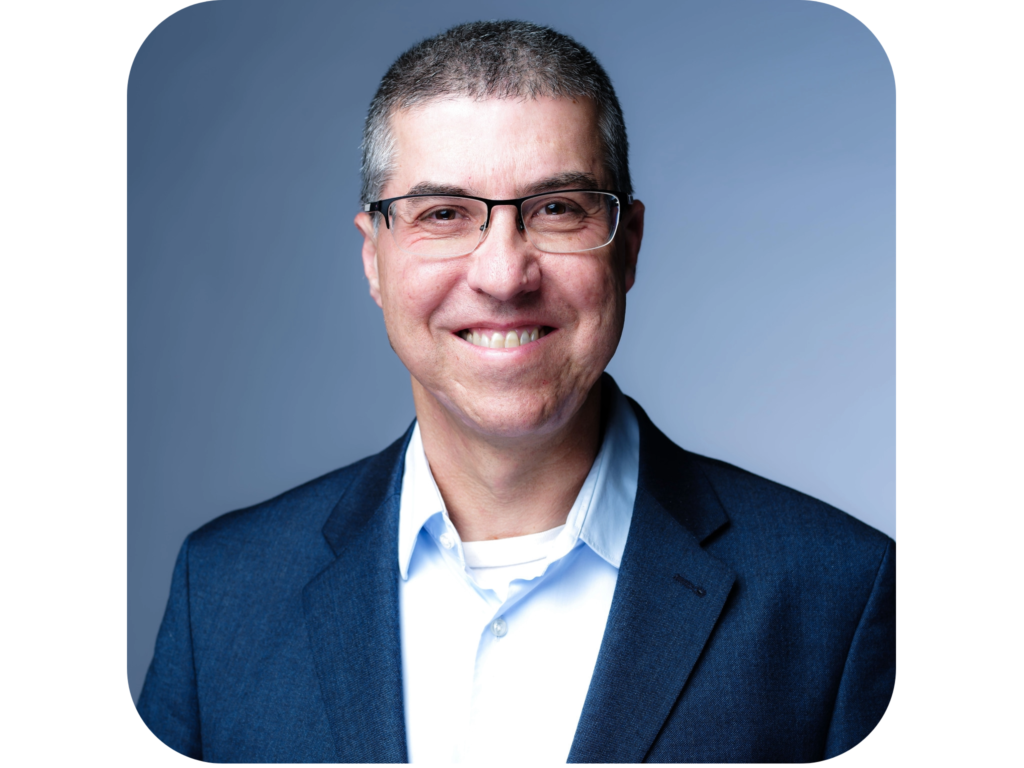
Image 1 Prompt
### Load 4 images of Eran (or your own face) into the interface # Then enter the following prompt: ### High-quality cinematic sci-fi portrait with advanced armor details cinematic photo long shot portrait of a (blue) ivory mechanical warmachine ( a man img inside 50 years old with glasses) with (gold) and (black) on a scifi battlefield, high details, sci-fi, subsurface scattering, hyper realistic, concept art, illustration, extremely detailed, 4K, smooth, masterpiece, award-winning ### Negative prompts to prevent unwanted defects beard , (Oriental, chinese, japanese)(necklace:1.4),(wrinkles on the forehead:1),(worst quality, low quality, normal quality, lowres, low details, oversaturated, undersaturated, overexposed, underexposed, grayscale, bw, bad photo, bad photography, bad art:1.4), (watermark, signature, text font, username, error, logo, words, letters, digits, autograph, trademark, name:1.2), (blur, blurry, grainy), morbid, ugly, asymmetrical, mutated malformed, mutilated, poorly lit, bad shadow, draft, cropped, out of frame, cut off, censored, jpeg artifacts, out of focus, glitch, duplicate, (airbrushed, cartoon, anime, semi-realistic, cgi, render, blender, digital art, manga, amateur:1.3), (3D ,3D Game, 3D Game Scene, 3D Character:1.1), (bad hands, bad anatomy, bad body, bad face, bad teeth, bad arms, bad legs, deformities:1.3) ### Image generation settings Seed: 1567720731 Guidance scale: 7 Number of sample steps: 50 Here is the result :

Image 2 Prompt
### Another angle and style focusing on realism and outdoor lighting photo of a man img ,dr3w3, facial hair, highres, realistic, from below, from side, looking down, looking at viewer, medium closeup, a homoerotic man in a hat standing in front of tropical trees, (wearing a summer shirt,:1.2) miami, 1boy, solo, bara, hat, abs, sky, cloud, outdoors, (tattoo:1.2), day, tree, earring, male focus, muscular male, facial hair, very short hair, perfect face, perfect eyes, dynamic angle ### Negative prompts to avoid distortions beard, (deformed iris, deformed pupils, semi-realistic, cgi, 3d, render, sketch, cartoon, drawing, anime, mutated hands and fingers:1.4), (deformed, distorted, disfigured:1.3), poorly drawn, bad anatomy, wrong anatomy, extra limb, missing limb, mutation, ugly, amputation, bad-hands-5, BadDream, (UnrealisticDream:1.2), nsfw:1.3 Seed: 1447017537 Here is the result :

Image 3 Prompt
### Cyberpunk-inspired nighttime portrait with neon reflections a man img in a leather jacket standing in a city at night with neon signs on the buildings behind him, Colin Middleton, blade runner, cyberpunk art, retrofuturism ### Negative prompt (low quality) Seed: 1100574280 FAQ — Common Questions About This AI Face Generator
Do I need a GPU for the PhotoMaker tutorial?
A GPU is recommended for fast generation, but CPU mode also works with slower performance.
Why must my prompt include the img keyword?
The img keyword tells the model where to place your face within the generated image.
How many photos should I upload?
Uploading 3–5 photos from different angles provides enough identity detail for accurate generation.
Why use negative prompts?
Negative prompts reduce distortion, artifacts, and other quality issues in your final images.
What does the guidance scale do?
Guidance scale controls how closely the image should follow your prompt, balancing creativity and accuracy.
My output looks blurry. How can I improve it?
Increase sampling steps, adjust guidance scale, or improve the lighting in your uploaded photos.
Can I generate cinematic or stylized pictures?
Yes, you can choose any artistic or cinematic style as long as the img token remains in your prompt.
Does PhotoMaker work offline?
Yes, after downloading model weights, everything runs fully offline and locally.
Is this method private and secure?
Yes, since you’re not uploading photos to any server, all image processing stays on your machine.
Can I change the reference images later?
Absolutely — you can upload new face photos anytime to guide the identity of future images.
Conclusion
Creating AI images with your own face has never been easier, and PhotoMaker provides a powerful, free, and privacy-friendly way to experiment with identity-based image generation. By setting up a clean environment, installing the correct libraries, and running the Gradio demo locally, you gain full creative control without relying on external services.
The included prompts and examples give you a strong starting point for generating high-quality results, whether you prefer cinematic sci-fi armor, lifestyle portraits, or stylized cyberpunk scenes. As you explore further, you’ll discover that modifying guidance scales, seeds, and descriptive terms can dramatically influence your outcomes — making this workflow an endlessly creative tool.
Whether you’re a beginner exploring AI art for the first time or an experienced creator adding a new workflow to your toolset, this tutorial equips you with everything needed to generate stunning, personalized AI images. Enjoy the process, experiment boldly, and make it your own.
Connect :
☕ Buy me a coffee — https://ko-fi.com/eranfeit
🖥️ Email : feitgemel@gmail.com
🤝 Fiverr : https://www.fiverr.com/s/mB3Pbb
Enjoy,
Eran