 Skip to content
Last Updated on 23/02/2026 by Eran Feit
Train YOLOv8 on Stanford Dogs to build a multi-class dog breed detection model that can find dogs in real photos and label them as one of 120 breeds.
This article walks through the full workflow from raw Stanford Dogs files to a trained YOLOv8 model you can run on new images.
Readers get value here because Stanford Dogs is not “plug and play” for YOLO.
The dataset ships with Pascal VOC XML annotations, breed folder naming quirks, and a structure that doesn’t match what YOLOv8 expects, so many attempts fail silently or produce bad labels.
The value comes from turning that messy starting point into a repeatable, verifiable pipeline.
You’ll see how to create a consistent breed-to-class index mapping, convert XML bounding boxes into YOLO normalized labels, and validate the conversion visually before you ever start training.
The article does this with a practical step-by-step build: set up the environment, generate YOLO train/valid folders, define the data.yaml for 120 classes, train a YOLOv8 nano model, and run inference with bounding boxes and breed names drawn on the image.
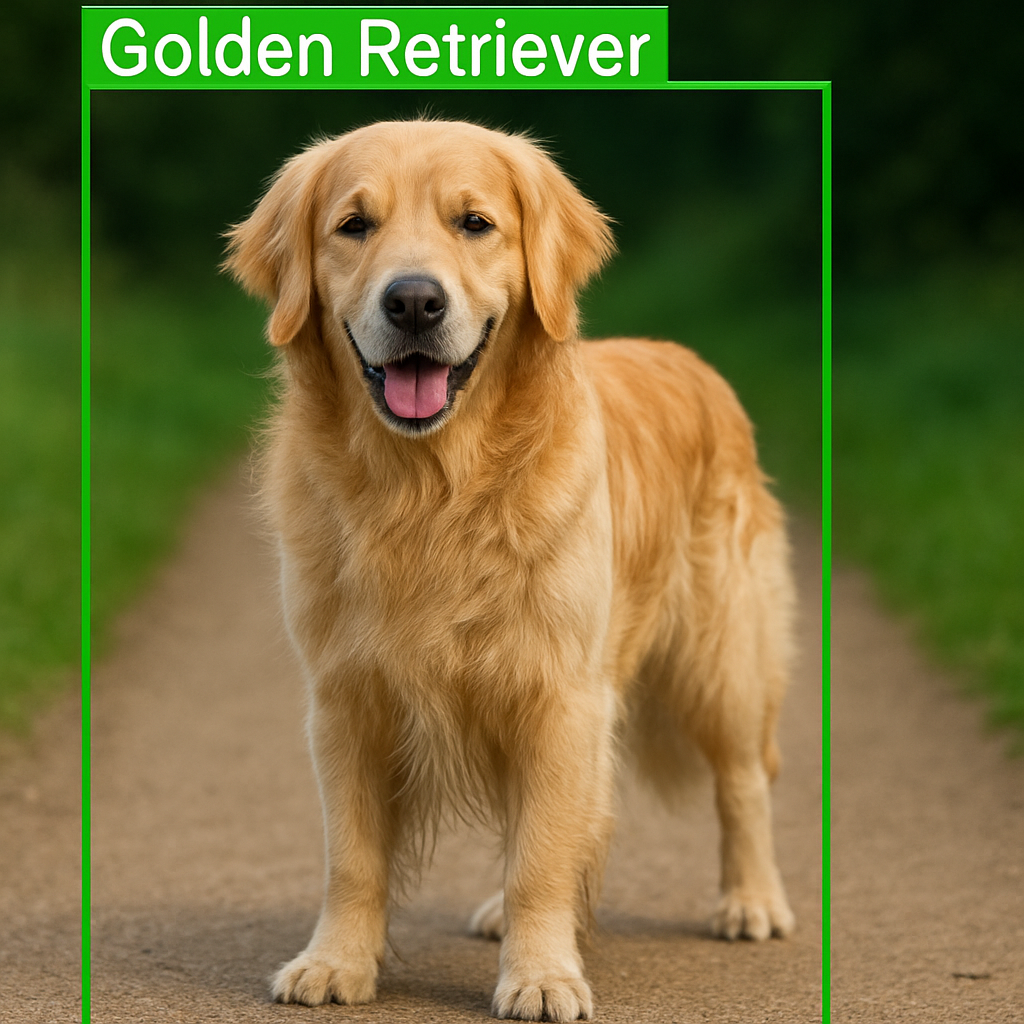
Getting comfortable with YOLOv8 dog detection
When people talk about yolov8 dog detection, they usually mean taking the general-purpose YOLOv8 architecture and adapting it to focus on dogs as the main object of interest.
Instead of training on generic datasets like COCO, you feed the model dog-centered images and labels, so it learns to specialize in finding dogs in all kinds of scenes.
This specialization often leads to better accuracy on dog-related tasks, because the model can dedicate more of its capacity to understanding canine shapes, poses, and contexts.
It also simplifies downstream logic, since you care primarily about the “dog” class (and possibly dog breeds), rather than dozens of unrelated categories.
A typical yolov8 dog detection workflow starts with data preparation.
You gather images that contain dogs, extract or convert bounding box annotations into YOLO format, and create train/validation folders.
For datasets like Stanford Dogs, this can involve parsing existing XML files, mapping breed names to numeric IDs, and saving the results as .txt label files next to the images.
Clean data at this stage is crucial, because every mislabeled bounding box or wrong class ID will confuse the model and show up later as strange predictions.
Once the dataset is ready, you define a data configuration file that tells YOLOv8 where the images live and what each class index represents.
For dog detection, that might be a single “dog” class, or a long list of breed names if you’re doing fine-grained detection.
During training, YOLOv8 uses this configuration to load images, read their bounding boxes, and augment them with random flips, scales, and crops.
These augmentations help the model generalize, so it can detect dogs in new backgrounds, camera angles, or lighting conditions it never saw during training.
After training, yolov8 dog detection turns into a simple inference step: load the best checkpoint, pass an image to the model, and read back the predicted boxes and labels.
You can draw rectangles around each detected dog, print the predicted breed name, and filter predictions by a confidence threshold to remove weak detections.
Because YOLOv8 is designed for real-time performance, this process can run on videos, webcams, or image streams, not just static photos.
That’s where the project really comes alive: you see your model spotting dogs in real-world scenes, frame by frame, powered by everything you built in the earlier steps.
If you want a complete YOLOv8 YouTube object detection workflow (auto-labeling, training, and live inference), follow this step-by-step guide: https://eranfeit.net/how-to-use-yolov8-for-object-detection-on-youtube-videos/
Walking through the YOLOv8 dog detection tutorial code
This tutorial is built around a complete, practical code pipeline for yolov8 dog detection on the Stanford Dogs dataset.
Instead of jumping straight to model training, the code walks you through everything that needs to happen behind the scenes: creating the environment, preparing the data, converting annotations, organizing folders, training the model, and finally running predictions on real images.
The goal is that by the end of the tutorial, you’ll not only have a working detector, but you’ll also understand why each code block exists and how to adapt it to your own projects.
The first part of the code focuses on setting up a clean and reproducible environment.
You create a dedicated Conda environment, install the correct versions of PyTorch with CUDA support, add Ultralytics YOLOv8, and make sure OpenCV is ready to handle image processing.
This may seem like a small step, but it ensures that everything that comes later—data loading, model training, and visualization—runs smoothly without version conflicts or missing libraries.
Next, the tutorial dives into data preparation, which is the heart of any custom yolov8 dog detection project.
The Stanford Dogs dataset provides Pascal VOC style XML annotations, while YOLOv8 expects labels in its own text-based YOLO format.
The code parses every XML file, reads the bounding boxes and class names, maps each dog breed to a numeric ID, and writes out YOLO-formatted label files.
At the same time, it copies images into train and validation folders with a clear 90/10 split, so the model can be trained and evaluated consistently.
Once the dataset is in the right shape, the code defines a data.yaml file that tells YOLOv8 where the images live and what each class index means.
With that in place, the training script loads the lightweight yolov8n model configuration, points it to the prepared dataset, and starts training for a defined number of epochs.
You control batch size, image size, patience, and logging options directly in the code, giving you a nice balance between simplicity and flexibility.
As training progresses, YOLOv8 automatically saves the best-performing weights, which will later be used for inference.
The final part of the tutorial code shows how to turn the trained model into a practical dog detector.
You load the best.pt weights, read a test image with OpenCV, run the YOLOv8 model on it, and loop over the predicted boxes.
For each detection above a chosen confidence threshold, the code draws a bounding box and writes the predicted breed name on top of the dog in the image.
This is where everything comes together: the environment setup, the XML-to-YOLO conversion, the data split, the training process, and the configuration file all support this simple, satisfying moment where your yolov8 dog detection model accurately finds and labels dogs in real images.
🚀 Recommended for You:
Ready to take your object detection skills to the next level? Learn how to handle live data with our latest guide: YouTube Stream Frame Extraction and Real-Time YOLOv8 Detection .
- Eliminate stream lag with advanced buffer management.
- Connect YOLOv8 directly to any YouTube URL.
- Optimized for low-latency real-time inference.
Link to the video tutorial : https://youtu.be/EpLEsL7clbg
Code for the tutorial here : https://eranfeit.lemonsqueezy.com/buy/156a6ac2-5795-413a-b6a9-3c5f91d83365 or here : https://ko-fi.com/s/3021f127ba
Send me and email for the dataset .
Link for Medium users : https://medium.com/@feitgemel/how-to-train-yolov8-dog-detection-on-stanford-dogs-147067cfbd95
You can follow my blog here : https://eranfeit.net/blog/
Want to get started with Computer Vision or take your skills to the next level ?
If you’re just beginning, I recommend this step-by-step course designed to introduce you to the foundations of Computer Vision – Complete Computer Vision Bootcamp With PyTorch & TensorFlow
If you’re already experienced and looking for more advanced techniques, check out this deep-dive course – Modern Computer Vision GPT, PyTorch, Keras, OpenCV4
yolov8 dog detection is a great way to turn raw images of dogs into a working, real-time detector that can spot different breeds inside your photos.
In this project, you’ll train YOLOv8 on the Stanford Dogs dataset, convert Pascal VOC XML annotations into YOLO format, and build a complete pipeline from environment setup to final predictions on new images.
Along the way, you’ll see how each code block fits into the bigger picture: preparing data, defining classes, training the model, and drawing bounding boxes with breed names.
By the end of this tutorial, you’ll have a reusable yolov8 dog detection workflow you can adapt to other datasets and custom projects.
Setting up a clean environment for YOLOv8 dog detection
When you’re training a YOLOv8 detector with many classes, small environment problems can snowball into confusing failures.
A clean Conda environment keeps dependencies isolated, so the versions of Python, PyTorch, and Ultralytics stay consistent from setup to inference.
Checking CUDA early is just as important as installing the right packages.
It tells you whether your NVIDIA driver and toolkit are aligned, and whether PyTorch can actually see the GPU you’re planning to train on.
If you don’t have GPU support, you can still run the pipeline on CPU to validate the dataset conversion and label visualization.
But for a 120-class Stanford Dogs model, GPU acceleration is usually what makes training realistic instead of a long, frustrating wait.
### Create a new Conda environment dedicated to YOLOv8 dog detection with Python 3.8. conda create --name YoloV8 python=3.8 ### Activate the environment so that all upcoming packages are installed into this project. conda activate YoloV8 ### Check that the NVIDIA CUDA compiler is available and confirm your CUDA toolkit version. nvcc --version ### Install PyTorch, Torchvision, and Torchaudio with CUDA 11.8 support from the official PyTorch and NVIDIA channels. conda install pytorch==2.1.1 torchvision==0.16.1 torchaudio==2.1.1 pytorch-cuda=11.8 -c pytorch -c nvidia ### Install the Ultralytics package that provides the YOLOv8 implementation for dog detection. pip install ultralytics==8.1.0 ### Install the lapx package required by some OpenCV tracking utilities. pip install "lapx>=0.5.2" After running these commands you’re ready to focus on data handling, annotation conversion, and the rest of the yolov8 dog detection pipeline.
Put Stanford Dogs on disk in a way YOLO can learn from
YOLO training is picky about folder structure because it needs to find images and labels consistently.
Your goal is to end up with four folders that match YOLO’s expectations: train/images, train/labels, valid/images, valid/labels.
Before you convert anything, it helps to understand what you already have.
Stanford Dogs includes image folders per breed, and annotation folders per breed, but the annotations are XML files that must be translated into YOLO label text files.
Suggested image placement: a simple folder-tree screenshot right here helps readers immediately “get” the target structure.
Send me and email for the dataset .
Turn breed folders into a stable class-index mapping
Multi-class detection only works if you keep a consistent mapping between breed name and class ID.
This mapping becomes the backbone of everything: conversion, visualization, training, and predictions.
The easiest reliable approach is to scan the annotation folder names and build a dictionary where each cleaned breed name maps to an integer.
That way, even if the dataset is big, your training labels stay consistent across the entire pipeline.
### Import os so we can list directories and build file paths for the Stanford Dogs annotations. import os ### Define the root directory where the original Stanford Dogs XML annotation folders live. directory = "C:/Data-sets/Stanford Dogs Dataset/annotations/Annotation" ### Create an empty list that will store all breed folder names found inside the annotations directory. folder_names = [] ### Loop over every entry in the annotations directory. for folder in os.listdir(directory): ### Check if the entry is a directory (each directory corresponds to a dog breed). if os.path.isdir(os.path.join(directory, folder)): ### Add the folder name to the list so we can later turn it into class indices. folder_names.append(folder) ### Create an empty dictionary that will map cleaned breed names to integer class IDs. class_indices = {} ### Enumerate over all folder names so each breed gets a unique integer index. for i, folder_name in enumerate(folder_names): ### Remove the numeric prefix before the dash to keep only the clean breed name. name_after_dash = "-".join(folder_name.split("-")[1:]).strip() ### Store the mapping from cleaned breed name to the current index. class_indices[name_after_dash] = i ### Print the full mapping so we can verify that all 120 dog breeds are included. print("class_indices =", class_indices) Convert one XML annotation first so mistakes show up early
A full dataset conversion is the worst place to discover a small bug.
If your bounding boxes are flipped, your normalization is wrong, or your class names don’t match the index dictionary, the conversion will still run—and you’ll only notice after training fails to learn anything.
Converting one example file lets you inspect the output label text and confirm that the numbers make sense.
This is the single highest-leverage debugging step in the whole workflow.
### Import the xml.etree.ElementTree module to parse Pascal VOC XML annotation files. import xml.etree.ElementTree as ET ### Define a function that converts one XML file into a YOLO-formatted label file. def convert_xml_to_yolo(xml_path, yolo_path, class_indices): ### Parse the XML file into an element tree. tree = ET.parse(xml_path) ### Get the root node so we can query image size and object elements. root = tree.getroot() ### Read the image width from the XML size block. image_width = int(root.find(".//size/width").text) ### Read the image height from the XML size block. image_height = int(root.find(".//size/height").text) ### Open the target YOLO label file for writing. with open(yolo_path, 'w') as yolo_file: ### Loop over every object (dog instance) described in the XML file. for obj in root.findall(".//object"): ### Read the class name (breed) from the object block. class_name = obj.find('name').text ### Look up the numeric class index for this breed. class_index = class_indices[class_name] ### Read the bounding box coordinates from the XML file. xmin = int(obj.find('bndbox/xmin').text) ymin = int(obj.find('bndbox/ymin').text) xmax = int(obj.find('bndbox/xmax').text) ymax = int(obj.find('bndbox/ymax').text) ### Compute the x-center in YOLO's relative coordinate system. x_center = (xmin + xmax) / (2.0 * image_width) ### Compute the y-center in YOLO's relative coordinate system. y_center = (ymin + ymax) / (2.0 * image_height) ### Compute the bounding box width as a fraction of image width. box_width = (xmax - xmin) / image_width ### Compute the bounding box height as a fraction of image height. box_height = (ymax - ymin) / image_height ### Format a YOLO label line as: class x_center y_center width height. yolo_line = f"{class_index} {x_center:.6f} {y_center:.6f} {box_width:.6f} {box_height:.6f}\n" ### Write the label line to the YOLO label file. yolo_file.write(yolo_line) ### Define the full path to one example XML annotation file (without the .xml extension if your files follow that pattern). json_file_path = "C:/Data-sets/Stanford Dogs Dataset/annotations/Annotation/n02087394-Rhodesian_ridgeback/n02087394_2253.xml" ### Define the path where the YOLO label for this image will be saved. yolo_output_path = "C:/Data-sets/Stanford Dogs Dataset/annotations/n02087394_2253.txt" ### Define the folder where all YOLO label files for training will eventually be stored. lables_folder_path = "C:/Data-sets/Stanford Dogs Dataset/training/labels" ### Create the labels folder if it does not already exist. if not os.path.exists(lables_folder_path): ### Make the directory tree so we can write label files into it. os.makedirs(lables_folder_path) ### Run the XML-to-YOLO conversion for this single example to verify the pipeline. convert_xml_to_yolo(json_file_path, yolo_output_path, class_indices) Sanity-check the label by drawing the bounding box on the image
Even if the numbers “look fine,” the fastest truth test is visual.
If the rectangle lands on the dog, your conversion is real. If it lands somewhere random, you know exactly where to look.
This step also catches subtle issues, like swapped width/height, wrong normalization, or mismatched file names.
Once you trust this visualization, converting the full dataset becomes much less risky.
Suggested image placement: show the annotated Rhodesian Ridgeback image right after this section.
### Import the YOLO class from Ultralytics (even though we mainly use OpenCV here, this keeps the environment consistent). from ultralytics import YOLO ### Import OpenCV to handle image loading, drawing, and display. import cv2 ### Import os for working with file paths if needed later. import os ### Import yaml in case you want to read configuration files alongside this script. import yaml ### Define the path to the example dog image you want to visualize. img = "C:/Data-sets/Stanford Dogs Dataset/images/images/n02087394-Rhodesian_ridgeback/n02087394_2253.jpg" ### Define the path to the YOLO label file corresponding to this image. imgAnot = "C:/Data-sets/Stanford Dogs Dataset/annotations/n02087394_2253.txt" ### Define a dictionary mapping dog breed names to integer class indices. class_indices = { "Chihuahua": 0, "Japanese_spaniel": 1, "Maltese_dog": 2, "Pekinese": 3, "Tzu": 4, "Blenheim_spaniel": 5, "papillon": 6, "toy_terrier": 7, "Rhodesian_ridgeback": 8, "Afghan_hound": 9, "basset": 10, "beagle": 11, "bloodhound": 12, "bluetick": 13, "tan_coonhound": 14, "Walker_hound": 15, "English_foxhound": 16, "redbone": 17, "borzoi": 18, "Irish_wolfhound": 19, "Italian_greyhound": 20, "whippet": 21, "Ibizan_hound": 22, "Norwegian_elkhound": 23, "otterhound": 24, "Saluki": 25, "Scottish_deerhound": 26, "Weimaraner": 27, "Staffordshire_bullterrier": 28, "American_Staffordshire_terrier": 29, "Bedlington_terrier": 30, "Border_terrier": 31, "Kerry_blue_terrier": 32, "Irish_terrier": 33, "Norfolk_terrier": 34, "Norwich_terrier": 35, "Yorkshire_terrier": 36, "haired_fox_terrier": 37, "Lakeland_terrier": 38, "Sealyham_terrier": 39, "Airedale": 40, "cairn": 41, "Australian_terrier": 42, "Dandie_Dinmont": 43, "Boston_bull": 44, "miniature_schnauzer": 45, "giant_schnauzer": 46, "standard_schnauzer": 47, "Scotch_terrier": 48, "Tibetan_terrier": 49, "silky_terrier": 50, "coated_wheaten_terrier": 51, "West_Highland_white_terrier": 52, "Lhasa": 53, "coated_retriever": 55, "golden_retriever": 56, "Labrador_retriever": 57, "Chesapeake_Bay_retriever": 58, "haired_pointer": 59, "vizsla": 60, "English_setter": 61, "Irish_setter": 62, "Gordon_setter": 63, "Brittany_spaniel": 64, "clumber": 65, "English_springer": 66, "Welsh_springer_spaniel": 67, "cocker_spaniel": 68, "Sussex_spaniel": 69, "Irish_water_spaniel": 70, "kuvasz": 71, "schipperke": 72, "groenendael": 73, "malinois": 74, "briard": 75, "kelpie": 76, "komondor": 77, "Old_English_sheepdog": 78, "Shetland_sheepdog": 79, "collie": 80, "Border_collie": 81, "Bouvier_des_Flandres": 82, "Rottweiler": 83, "German_shepherd": 84, "Doberman": 85, "miniature_pinscher": 86, "Greater_Swiss_Mountain_dog": 87, "Bernese_mountain_dog": 88, "Appenzeller": 89, "EntleBucher": 90, "boxer": 91, "bull_mastiff": 92, "Tibetan_mastiff": 93, "French_bulldog": 94, "Great_Dane": 95, "Saint_Bernard": 96, "Eskimo_dog": 97, "malamute": 98, "Siberian_husky": 99, "affenpinscher": 100, "basenji": 101, "pug": 102, "Leonberg": 103, "Newfoundland": 104, "Great_Pyrenees": 105, "Samoyed": 106, "Pomeranian": 107, "chow": 108, "keeshond": 109, "Brabancon_griffon": 110, "Pembroke": 111, "Cardigan": 112, "toy_poodle": 113, "miniature_poodle": 114, "standard_poodle": 115, "Mexican_hairless": 116, "dingo": 117, "dhole": 118, "African_hunting_dog": 119 } ### Create a reverse mapping from class index to readable breed name. number_to_name = {value: key for key, value in class_indices.items()} ### Load the image from disk using OpenCV. img = cv2.imread(img) ### Read the image height and width so we can convert YOLO coordinates back to pixels. H, W, _ = img.shape ### Open the YOLO label file and read all lines into memory. with open(imgAnot, 'r') as file: ### Store every line from the label file in a list for later parsing. lines = file.readlines() ### Create an empty list that will hold parsed annotations in (label, x, y, w, h) format. annotations = [] ### Loop over each line in the YOLO label file. for line in lines: ### Split the line into separate values (class index followed by normalized coordinates). values = line.split() ### The first value is the class label index as a string. label = values[0] ### Convert the remaining four values into float coordinates. x, y, w, h = map(float, values[1:]) ### Append the parsed annotation to our list. annotations.append((label, x, y, w, h)) ### Loop over each parsed annotation to draw boxes on the image. for annotation in annotations: ### Unpack the label and YOLO-format coordinates. label, x, y, w, h = annotation ### Convert the numeric label back to a readable breed name. label_name = number_to_name[int(label)] ### Compute the top-left x coordinate in pixels. x1 = int((x - w / 2) * W) ### Compute the top-left y coordinate in pixels. y1 = int((y - h / 2) * H) ### Compute the bottom-right x coordinate in pixels. x2 = int((x + w / 2) * W) ### Compute the bottom-right y coordinate in pixels. y2 = int((y + h / 2) * H) ### Draw the bounding box rectangle around the detected dog. cv2.rectangle(img, (x1, y1), (x2, y2), (200, 200, 0), 1) ### Put the breed name text slightly above the top-left corner of the box. cv2.putText( img, label_name, (x1, y1 - 5), cv2.FONT_HERSHEY_SIMPLEX, 0.5, (200, 200, 0), 2, cv2.LINE_AA ) ### Display the annotated image in a window. cv2.imshow("img", img) ### Wait for a key press so the window does not close immediately. cv2.waitKey() ### Close all OpenCV windows when you are done. cv2.destroyAllWindows() Convert the full dataset and build YOLO train/valid folders in one pass
Once the single-file conversion and visualization look correct, you’re ready to scale.
This script copies images into train/valid folders and writes labels beside them, using a simple 90/10 split rule.
This step is where the project becomes “real training data.”
After it finishes, you’ll have a dataset structure that YOLO can train on directly without special handling.
### Import os for working with file paths and directory listing. import os ### Import shutil to copy image files into train and validation folders. import shutil ### Define the root directory where the Pascal VOC XML annotation folders are stored. directory = "C:/Data-sets/Stanford Dogs Dataset/annotations/Annotation" ### Create an empty list that will hold all annotation folder names. folder_names = [] ### Loop over each item in the annotations directory. for folder in os.listdir(directory): ### If the item is a directory, treat it as a breed folder and store its name. if os.path.isdir(os.path.join(directory, folder)): folder_names.append(folder) ### Create a dictionary that will map cleaned breed names to numeric class indices. class_indices = {} ### Enumerate over all folder names to build the class index mapping. for i, folder_name in enumerate(folder_names): ### Strip off the numeric prefix before the dash to keep only the breed name. name_after_dash = "-".join(folder_name.split("-")[1:]).strip() ### Store the mapping in the dictionary. class_indices[name_after_dash] = i ### Print the mapping so you can double-check the class indices if needed. print("class_indices =", class_indices) ### Import the XML parsing module so we can read Pascal VOC annotations. import xml.etree.ElementTree as ET ### Define the function that converts a single XML annotation into YOLO label format. def convert_xml_to_yolo(xml_path, yolo_path, class_indices): ### Parse the XML annotation file into an element tree. tree = ET.parse(xml_path) ### Get the root element to access image size and object tags. root = tree.getroot() ### Read the width of the image from the XML file. image_width = int(root.find(".//size/width").text) ### Read the height of the image from the XML file. image_height = int(root.find(".//size/height").text) ### Open the target YOLO text file for writing label lines. with open(yolo_path, 'w') as yolo_file: ### Loop over each object instance described in the XML. for obj in root.findall(".//object"): ### Extract the class name (breed) of the current object. class_name = obj.find('name').text ### Look up the corresponding numeric class index. class_index = class_indices[class_name] ### Read the bounding box coordinates from the XML tags. xmin = int(obj.find('bndbox/xmin').text) ymin = int(obj.find('bndbox/ymin').text) xmax = int(obj.find('bndbox/xmax').text) ymax = int(obj.find('bndbox/ymax').text) ### Compute the YOLO x-center value relative to the image width. x_center = (xmin + xmax) / (2.0 * image_width) ### Compute the YOLO y-center value relative to the image height. y_center = (ymin + ymax) / (2.0 * image_height) ### Compute the relative width of the bounding box. box_width = (xmax - xmin) / image_width ### Compute the relative height of the bounding box. box_height = (ymax - ymin) / image_height ### Format the label line with class index and normalized coordinates. yolo_line = f"{class_index} {x_center:.6f} {y_center:.6f} {box_width:.6f} {box_height:.6f}\n" ### Write the label line to the YOLO text file. yolo_file.write(yolo_line) ### Define the output folder for training images. output_train_images_folder = "C:/Data-sets/Stanford Dogs Dataset/dataset/train/images" ### Create the training images directory if it does not already exist. if not os.path.exists(output_train_images_folder): os.makedirs(output_train_images_folder) ### Define the output folder for validation images. output_valid_images_folder = "C:/Data-sets/Stanford Dogs Dataset/dataset/valid/images" ### Create the validation images directory if it does not already exist. if not os.path.exists(output_valid_images_folder): os.makedirs(output_valid_images_folder) ### Define the output folder for training label text files. output_train_lables_folder = "C:/Data-sets/Stanford Dogs Dataset/dataset/train/labels" ### Create the training labels directory if it does not already exist. if not os.path.exists(output_train_lables_folder): os.makedirs(output_train_lables_folder) ### Define the output folder for validation label text files. output_valid_lables_folder = "C:/Data-sets/Stanford Dogs Dataset/dataset/valid/labels" ### Create the validation labels directory if it does not already exist. if not os.path.exists(output_valid_lables_folder): os.makedirs(output_valid_lables_folder) ### Define the root folder containing all original image subfolders for each breed. source_images_folder = "C:/Data-sets/Stanford Dogs Dataset/images/Images" ### Initialize a counter that will help us create a 90/10 train/valid split. split_numerator = 0 ### List all breed image folders inside the source images directory. images_folder_names = os.listdir(source_images_folder) ### Print the folder names so you can verify the dataset structure. print(images_folder_names) ### Loop over each breed folder in the images directory. for folder in images_folder_names: ### Get the list of image file names inside the current breed folder. list_of_images = os.listdir(os.path.join(source_images_folder, folder)) ### Loop over every image file in this breed folder. for image in list_of_images: ### Compute the residue of the image counter to decide the dataset split. residue = split_numerator % 10 ### Build the full path to the original image file. image_full_path = os.path.join(source_images_folder, folder, image) ### If residue is zero, send this image to the validation set. if residue == 0: image_full_path_destination = os.path.join(output_valid_images_folder, image) ### Otherwise, send it to the training set. else: image_full_path_destination = os.path.join(output_train_images_folder, image) ### Copy the image file to its destination (train or valid). shutil.copyfile(image_full_path, image_full_path_destination) ### Strip the file extension from the image file name to get the base name. file_name_without_extension = os.path.splitext(image)[0] ### Build the full path to the corresponding XML annotation file. full_file_path = os.path.join(directory, folder, file_name_without_extension + ".xml") ### Decide where the YOLO label file should be stored based on the split. if residue == 0: yolo_file_path = os.path.join(output_valid_lables_folder, file_name_without_extension + ".txt") else: yolo_file_path = os.path.join(output_train_lables_folder, file_name_without_extension + ".txt") ### Convert the XML annotation for this image into YOLO label format. convert_xml_to_yolo(full_file_path, yolo_file_path, class_indices) ### Increment the split counter so the next image is routed correctly. split_numerator = split_numerator + 1 ### Print progress so you can track how many files have been processed. print("File no. " + str(split_numerator)) Train YOLOv8 Nano on 120 dog breeds and keep results organized
Training on 120 classes can feel intimidating, but the mechanics are the same as training on 1 class.
The difference is that your labels, class mappings, and dataset configuration must be clean—otherwise the model learns noise.
A simple way to stay organized is to set a project folder and experiment name that match what you’re doing.
That keeps your runs separated, makes it easier to compare results, and helps you find best.pt later without digging.
### Import the YOLO class from Ultralytics so we can create and train a YOLOv8 model. from ultralytics import YOLO ### Define the main entry point of the training script. def main(): ### Load the YOLOv8 Nano model architecture from its YAML configuration file. model = YOLO("yolov8n.yaml") ### Set the path to the data configuration file that points to train and validation folders. config_file_path = "Best-Object-Detection-models/Yolo-V8/Stanford Dogs-Convert-Json-2-Yolo/data.yaml" ### Define the project directory where YOLOv8 will store experiment results. project = "C:/Data-sets/Stanford Dogs Dataset/dataset" ### Give a friendly name to this experiment so results are stored in a clear subfolder. experiment_name = "Nano-Model" ### Choose a batch size that fits into your GPU memory. batch_size = 16 ### Start training the YOLOv8 Nano model on the Stanford Dogs dataset. results = model.train( data=config_file_path, epochs=100, project=project, name=experiment_name, batch=batch_size, device=0, patience=10, imgsz=640, verbose=True, val=True ) ### Run the main function only when this script is executed directly. if __name__ == "__main__": main() Create the data.yaml that defines the whole dataset
YOLOv8 uses a YAML file to connect the dataset paths with the class names.
If this file is wrong, training might still start, but your labels won’t map correctly, and results will look broken.
The most important parts are the train and val image paths and the names mapping.
Once this is set, your pipeline becomes repeatable: you can train other model sizes or rerun experiments without touching the dataset again.
train: C:/Data-sets/Stanford Dogs Dataset/dataset/train/images val: C:/Data-sets/Stanford Dogs Dataset/dataset/valid/images names: 0: 'Chihuahua' 1: 'Japanese_spaniel' 2: 'Maltese_dog' 3: 'Pekinese' 4: 'Shih-Tzu' 5: 'Blenheim_spaniel' 6: 'papillon' 7: 'toy_terrier' 8: 'Rhodesian_ridgeback' 9: 'Afghan_hound' 10: 'basset' 11: 'beagle' 12: 'bloodhound' 13: 'bluetick' 14: 'black-and-tan_coonhound' 15: 'Walker_hound' 16: 'English_foxhound' 17: 'redbone' 18: 'borzoi' 19: 'Irish_wolfhound' 20: 'Italian_greyhound' 21: 'whippet' 22: 'Ibizan_hound' 23: 'Norwegian_elkhound' 24: 'otterhound' 25: 'Saluki' 26: 'Scottish_deerhound' 27: 'Weimaraner' 28: 'Staffordshire_bullterrier' 29: 'American_Staffordshire_terrier' 30: 'Bedlington_terrier' 31: 'Border_terrier' 32: 'Kerry_blue_terrier' 33: 'Irish_terrier' 34: 'Norfolk_terrier' 35: 'Norwich_terrier' 36: 'Yorkshire_terrier' 37: 'wire-haired_fox_terrier' 38: 'Lakeland_terrier' 39: 'Sealyham_terrier' 40: 'Airedale' 41: 'cairn' 42: 'Australian_terrier' 43: 'Dandie_Dinmont' 44: 'Boston_bull' 45: 'miniature_schnauzer' 46: 'giant_schnauzer' 47: 'standard_schnauzer' 48: 'Scotch_terrier' 49: 'Tibetan_terrier' 50: 'silky_terrier' 51: 'soft-coated_wheaten_terrier' 52: 'West_Highland_white_terrier' 53: 'Lhasa' 54: 'flat-coated_retriever' 55: 'curly-coated_retriever' 56: 'golden_retriever' 57: 'Labrador_retriever' 58: 'Chesapeake_Bay_retriever' 59: 'German_short-haired_pointer' 60: 'vizsla' 61: 'English_setter' 62: 'Irish_setter' 63: 'Gordon_setter' 64: 'Brittany_spaniel' 65: 'clumber' 66: 'English_springer' 67: 'Welsh_springer_spaniel' 68: 'cocker_spaniel' 69: 'Sussex_spaniel' 70: 'Irish_water_spaniel' 71: 'kuvasz' 72: 'schipperke' 73: 'groenendael' 74: 'malinois' 75: 'briard' 76: 'kelpie' 77: 'komondor' 78: 'Old_English_sheepdog' 79: 'Shetland_sheepdog' 80: 'collie' 81: 'Border_collie' 82: 'Bouvier_des_Flandres' 83: 'Rottweiler' 84: 'German_shepherd' 85: 'Doberman' 86: 'miniature_pinscher' 87: 'Greater_Swiss_Mountain_dog' 88: 'Bernese_mountain_dog' 89: 'Appenzeller' 90: 'EntleBucher' 91: 'boxer' 92: 'bull_mastiff' 93: 'Tibetan_mastiff' 94: 'French_bulldog' 95: 'Great_Dane' 96: 'Saint_Bernard' 97: 'Eskimo_dog' 98: 'malamute' 99: 'Siberian_husky' 100: 'affenpinscher' 101: 'basenji' 102: 'pug' 103: 'Leonberg' 104: 'Newfoundland' 105: 'Great_Pyrenees' 106: 'Samoyed' 107: 'Pomeranian' 108: 'chow' 109: 'keeshond' 110: 'Brabancon_griffon' 111: 'Pembroke' 112: 'Cardigan' 113: 'toy_poodle' 114: 'miniature_poodle' 115: 'standard_poodle' 116: 'Mexican_hairless' 117: 'dingo' 118: 'dhole' 119: 'African_hunting_dog' 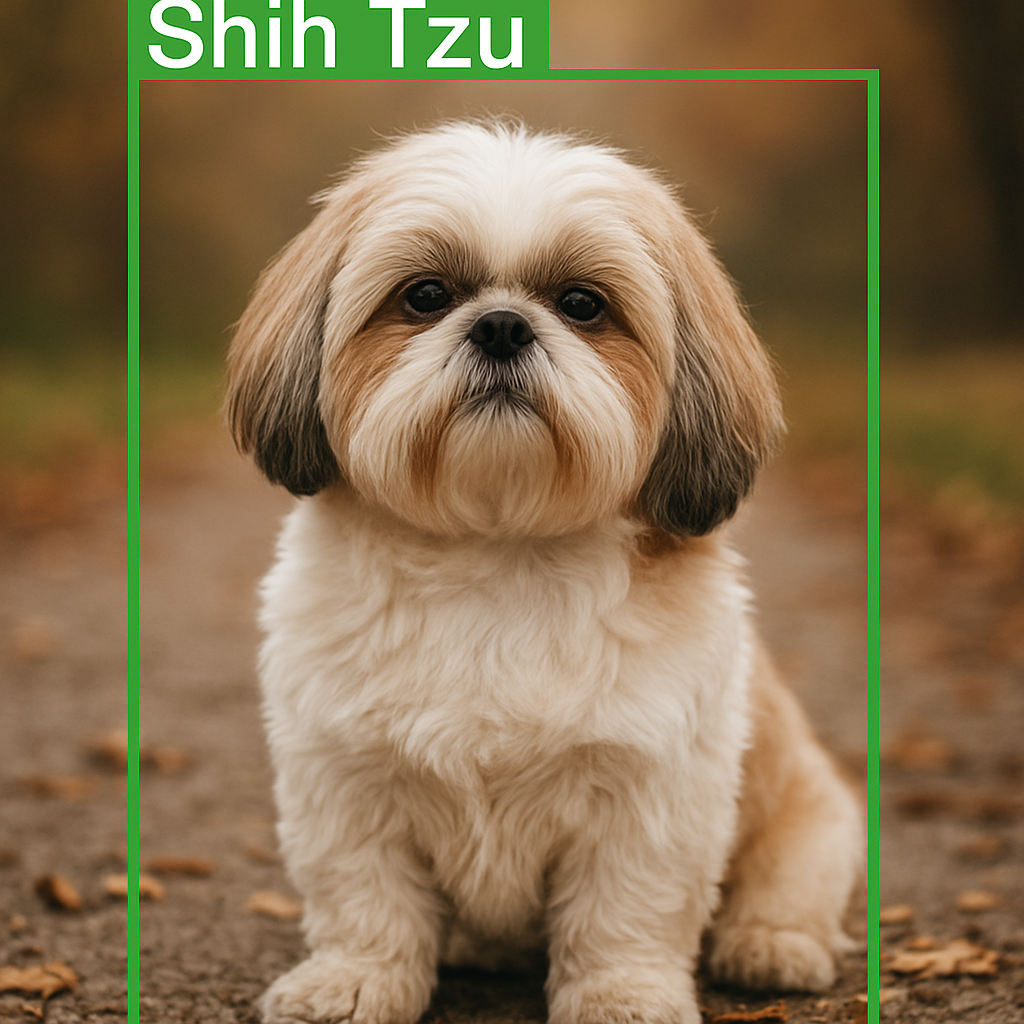
Run predictions and visualize your trained YOLOv8 dog detector
This is the payoff section: you load best.pt, run inference on a test image, and draw predicted boxes with breed labels.
Even if the model isn’t perfect yet, this step turns “training output” into something you can evaluate and improve.
A strong habit here is to test on images that are not from the dataset, or at least not from the exact training folders.
That gives you a more honest sense of generalization and helps you spot overfitting early.
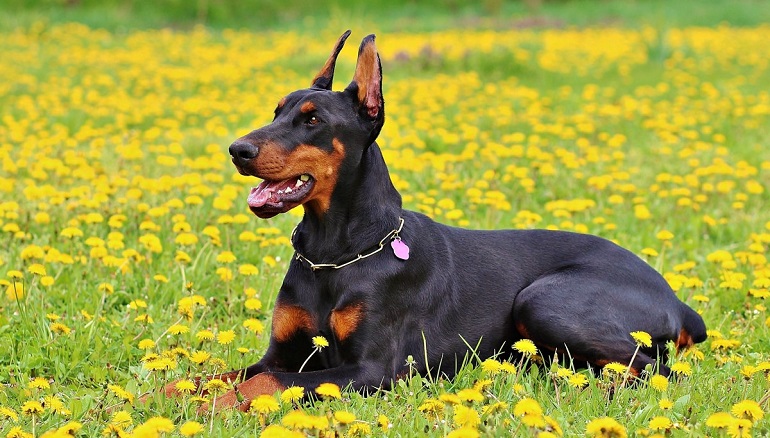
Suggested image placement: show the raw test image first, then the predicted output image right after.
Here is the test image :
### Import the YOLO class to load the trained YOLOv8 model. from ultralytics import YOLO ### Import OpenCV so we can read the test image and draw bounding boxes. import cv2 ### Import os to help build filesystem paths in a portable way. import os ### Define the path to the test image you want to run predictions on. imgPath = "Best-Object-Detection-models/Yolo-V8/Stanford Dogs-Convert-Json-2-Yolo/doberman.jpg" # imgPath = "Best-Object-Detection-models/Yolo-V8/Stanford Dogs-Convert-Json-2-Yolo/Dori.jpg" ### Read the image from disk using OpenCV. img = cv2.imread(imgPath) ### Get the image height and width to help with any later processing. H, W, _ = img.shape ### Build the full path to the trained YOLOv8 model weights. model_path = os.path.join( "C:/Data-sets/Stanford Dogs Dataset/dataset", "Nano-Model", "weights", "best.pt" ) ### Load the trained YOLOv8 model from disk. model = YOLO(model_path) ### Set a confidence threshold to filter out weak detections. threshold = 0.3 ### Run the model on the image and take the first result. results = model(img)[0] ### Loop over every detected bounding box returned by YOLOv8. for result in results.boxes.data.tolist(): ### Unpack the box coordinates, confidence score, and class ID. x1, y1, x2, y2, score, class_id = result ### Only draw detections that exceed the chosen confidence threshold. if score > threshold: ### Draw the bounding box rectangle around the detected dog. cv2.rectangle(img, (int(x1), int(y1)), (int(x2), int(y2)), (0, 0, 0), 3) ### Put the predicted breed name above the bounding box. cv2.putText( img, results.names[int(class_id)].upper(), (int(x1), int(y1 - 10)), cv2.FONT_HERSHEY_SIMPLEX, 0.5, (0, 0, 0), 1, cv2.LINE_AA ) ### Show the final image with YOLOv8 dog detection results. cv2.imshow("img", img) ### Wait for a key press so you can inspect the detections. cv2.waitKey(0) ### Close all OpenCV windows when you are done. cv2.destroyAllWindows() The result :
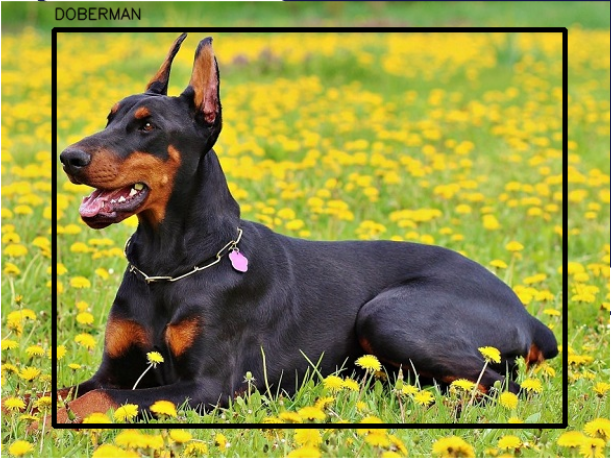
You now have a complete yolov8 dog detection system: from raw Stanford Dogs annotations through training and all the way to labeled predictions on new images.
Common pitfalls that quietly ruin multi-class detection training
Label paths don’t match image paths.
If your data.yaml points to images but your labels aren’t in the matching labels/ folder beside them, YOLO will train on empty targets.
Your XML breed names don’t match your mapping keys.
If the XML contains Shih-Tzu but your class_indices expects Shih_Tzu (or vice versa), you’ll get either crashes or mislabels.
A bad conversion can still “work.”
Wrong normalization values, swapped width/height, and coordinate mistakes won’t always throw an error.
They just create labels that look valid but teach the model nonsense.
Validation split is too small or unbalanced.
A simple split rule is fine for learning, but if you want more stable metrics later, consider making the split more deliberate.
FAQ: YOLOv8 dog detection on Stanford Dogs
What does this YOLOv8 dog detection code actually do?
The code builds a full pipeline that converts Stanford Dogs annotations to YOLO format, trains a YOLOv8 model on 120 breeds, and runs predictions on new images.
Which dataset is used for training the model?
The tutorial uses the Stanford Dogs dataset, which contains images and bounding-box annotations for 120 different dog breeds.
Why do we split the data into train and validation sets?
Splitting into train and validation sets helps you monitor performance on unseen images and avoid overfitting during training.
Do I need to change the data.yaml file for my own paths?
Yes, you should update the train and val paths in data.yaml so they point to your actual dataset folders on disk.
Can I switch from YOLOv8 Nano to a larger model?
You can switch to models like YOLOv8s or YOLOv8m by changing the YAML file name, as long as your GPU has enough memory.
What does the confidence threshold control in prediction?
The threshold filters out low-confidence detections so only predictions with a score above the chosen value are drawn on the image.
Is it possible to train on fewer dog breeds?
Yes, you can subset the dataset and adjust the class mappings so YOLOv8 only learns the specific breeds you care about.
How do I debug incorrect bounding boxes after conversion?
Check that image width and height are read correctly, verify the XML coordinates, and use the visualization script to see where boxes are drawn.
Can I reuse this code for video input instead of images?
Yes, you can wrap the prediction loop inside a video frame reader and run YOLOv8 on each frame in real time.
What are the next steps after this tutorial?
You can experiment with larger models, add data augmentation, or adapt the same pipeline to other custom object detection tasks.
Conclusion
In this tutorial you walked through a complete, hands-on yolov8 dog detection project using the Stanford Dogs dataset.
Starting from a clean Conda environment, you prepared the data by converting Pascal VOC XML annotations into YOLO format, organized the images into train and validation splits, and defined a data configuration that exposes all 120 dog breeds to YOLOv8.
Each code block is designed to be copy-paste friendly so you can reproduce the full pipeline on your own machine with only minor path adjustments.
Once the dataset was ready, you trained the YOLOv8 Nano model, monitored its progress, and saved the best-performing weights.
The final prediction script closed the loop by loading those weights, running inference on a test dog image, and drawing bounding boxes with breed labels.
This workflow turns the abstract idea of “dog detection with deep learning” into something concrete and visual: you can literally see the model’s understanding of each dog breed on screen.
From here, you can extend the project in many directions.
You might switch to a larger YOLOv8 variant for higher accuracy, try more aggressive data augmentations, or adapt the same code structure to different animal or object datasets.
No matter which path you choose, you now have a solid, reusable template for training YOLOv8 on custom detection tasks and scaling your computer vision projects to real-world scenarios.
Connect :
☕ Buy me a coffee — https://ko-fi.com/eranfeit
🖥️ Email : feitgemel@gmail.com
🤝 Fiverr : https://www.fiverr.com/s/mB3Pbb
Enjoy,
Eran