 Skip to content
Last Updated on 11/02/2026 by Eran Feit
Ever wanted a quick way to recognize what’s inside a photo without training a model or building a huge pipeline.
This article is about running MediaPipe image classifier Python code end-to-end, using a lightweight EfficientNet-Lite0 TensorFlow Lite model to classify a real image in seconds.
The real value here is that you get a working, practical blueprint that mirrors how developers actually build small computer-vision features.
Instead of staying at the “concept” level, you’ll see how to load an image with OpenCV, run classification with MediaPipe Tasks, read the top category and confidence score, and turn the result into something you can actually use.
You’ll also learn how to keep the setup clean and predictable.
The tutorial shows the exact environment steps, the model download idea, and the key configuration points that usually cause confusion, like model paths, result formatting, and how many classes to return.
By the end, you’ll have a reusable pattern you can drop into your own projects.
You’ll run MediaPipe image classifier Python on your own images, print the predicted label and score, and overlay the final result on the image so it looks like a real application output rather than a terminal-only demo.
MediaPipe image classifier Python, explained like you’ll actually use it
MediaPipe’s Image Classifier in Python is a practical shortcut for “give me the best label for this image, fast.”
Instead of building a full TensorFlow training workflow, you load a ready-to-run TensorFlow Lite model and let MediaPipe handle the preprocessing, inference, and structured output.
That’s why it’s great for prototypes, demos, and real products where you just need reliable predictions without extra complexity.
At a high level, the goal is simple: you pass an image in, and you get back a ranked list of categories with confidence scores.
Those scores let you decide how confident the model is, and whether to trust the prediction or treat it as uncertain.
In a real workflow, that means you can filter out weak results, show only the top few categories, or log predictions for later analysis.
The “sweet spot” for MediaPipe image classifier Python is speed and simplicity.
You can run it on a laptop, integrate it with OpenCV in a few lines, and immediately visualize the result on the image itself.
That last part matters more than it sounds: once you overlay the label and score, you’ve turned a raw model output into something you can present, debug, and iterate on like a real computer-vision feature.

Build a practical image classifier with MediaPipe and EfficientNet-Lite0
This tutorial is focused on the actual Python code that turns an ordinary image into a meaningful prediction.
The target of the code is simple: load a photo, run it through a mediapipe image classifier python pipeline, and receive the most likely category with a confidence score.
Everything happens locally using a lightweight TensorFlow Lite model, so the process is fast enough for everyday development work and small applications.
At a high level, the code connects three main pieces.
OpenCV handles the image reading and visualization, MediaPipe Tasks performs the classification, and NumPy helps create a copy of the image for drawing the result.
The goal is not just to print text in the terminal, but to produce a visual output where the predicted label is written directly on top of the picture like a real computer-vision feature.
The workflow inside the script follows a clear path.
First the image is loaded from disk, then the MediaPipe Image Classifier is created with a path to the EfficientNet-Lite0 model.
Once the classifier object is ready, the image is converted into the format MediaPipe expects and passed to the classify method, which returns structured results containing categories and scores.
After the prediction step, the code extracts the top category and formats it into a human-readable string.
This text is drawn on the image using OpenCV’s drawing functions, creating a final file that shows both the original content and the model’s understanding of it.
The overall target of the tutorial is to give you a repeatable pattern you can reuse with any image, any TFLite classification model, and any project where you need quick on-device recognition.
Link to the video tutorial here .
Download the code for the tutorial here or here
Best AI Photo Tools (Backgrounds, Objects, Headshots)


My Blog
Link for Medium users here
Want to get started with Computer Vision or take your skills to the next level ?
Great Interactive Course : “Deep Learning for Images with PyTorch” here
If you’re just beginning, I recommend this step-by-step course designed to introduce you to the foundations of Computer Vision – Complete Computer Vision Bootcamp With PyTorch & TensorFlow
If you’re already experienced and looking for more advanced techniques, check out this deep-dive course – Modern Computer Vision GPT, PyTorch, Keras, OpenCV4
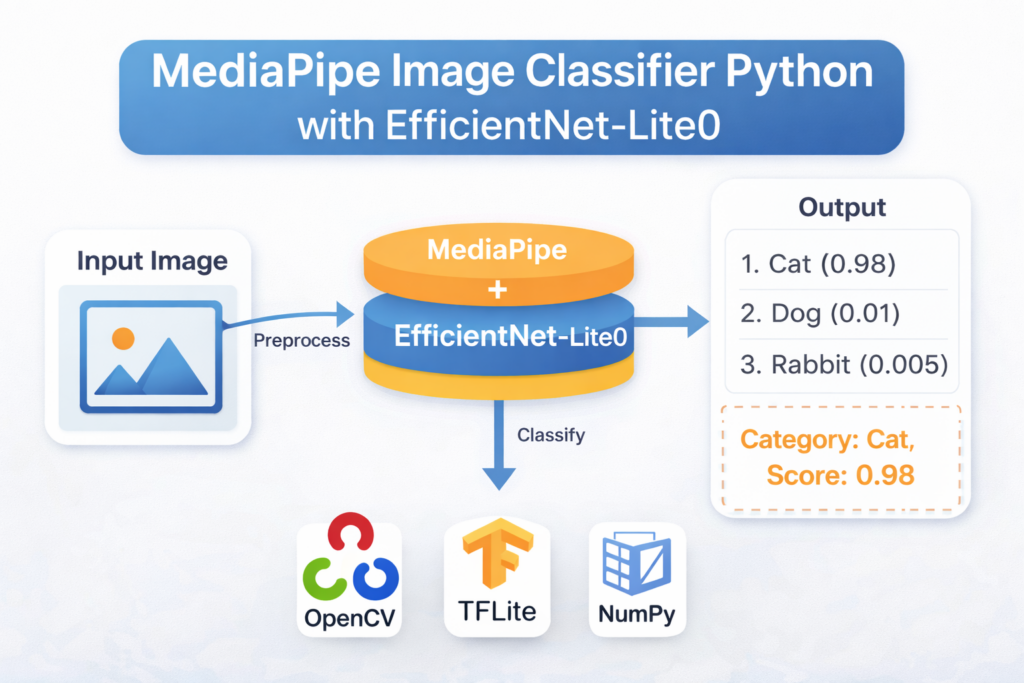
MediaPipe image classifier Python with EfficientNet-Lite0
Sometimes you just want a working image classifier that you can run on a single photo and trust the output.
This tutorial shows exactly how to do that with mediapipe image classifier python and a lightweight EfficientNet-Lite0 TensorFlow Lite model.
You will build a small script that reads an image with OpenCV and runs classification with MediaPipe Tasks.
Then you will extract the top predicted category, format the confidence score, and turn the result into something visual that you can actually share.
Instead of stopping at terminal output, the code overlays the prediction on the image itself.
That means you get a clean “app-like” result image that is perfect for demos, debugging, and quick experiments.
By the end, you will have a repeatable pattern you can reuse with your own images and your own model paths.
You will also know exactly which lines control the model file, the number of returned classes, and the on-image text rendering.
Get your environment ready and place the model where the code expects it
A smooth run starts with a clean environment.
Pinning library versions reduces surprise errors and keeps your setup reproducible across machines.
This is especially helpful when you want the same script to work on Windows, WSL, or a second PC without “dependency roulette.”
The goal of this setup is simple.
You want MediaPipe Tasks to load a TensorFlow Lite classifier model and run inference without extra conversions.
EfficientNet-Lite0 is a great fit for quick classification demos because it is lightweight and fast.
Before you run the Python script, make sure the model file is downloaded and stored in the exact folder you reference in code.
If the model path is wrong, the classifier will not initialize, even if the rest of the script is perfect.
Treat the model path like a required input, just like the image path.
### Create a new Conda environment with Python 3.11. conda create -n mediapipe311 python=3.11 ### Activate the environment so installs go to the right place. conda activate mediapipe311 ### Install NumPy for image array handling and copying. pip install numpy==1.26.4 ### Install OpenCV for reading, previewing, and drawing on images. pip install opencv-python==4.10.0.84 ### Install MediaPipe for the Image Classifier Tasks API. pip install mediapipe==0.10.21 ### Download the EfficientNet-Lite0 TensorFlow Lite model file. ### Save it locally so your code can reference it by path. ### Example target path used later in the code: ### D:/Temp/Models/efficientnet_lite0.tflite Load a real image with OpenCV so you can debug visually
Image classification can feel like a black box when you only see printed labels.
Displaying the input image early makes debugging much easier, because you confirm the file path, the image loads correctly, and the preview window works.
If anything fails here, you fix it before touching model inference.
This section also sets up the two core data structures you will reuse later.img holds the original OpenCV image, and later you will create a copy for drawing results.
That copy prevents accidental edits to the original image buffer when you overlay text.
Even if your final goal is batch processing, it helps to start with a single-image workflow.
Once you can reliably classify one image, turning it into a loop over a folder becomes straightforward.
This “one image first” habit saves a lot of time in real projects.
Here is the Test image :

### Import OpenCV for reading images and drawing text overlays. import cv2 ### Import NumPy for copying and working with image arrays. import numpy as np ### Define the path to the image you want to classify. imagePath = "Best-image-classification-models/Media-Pipe-Object-Classification/Dori.jpg" ### Read the image from disk into an OpenCV BGR array. img = cv2.imread(imagePath) ### Preview the input image to confirm it loaded correctly. cv2.imshow("Image", img) Create the MediaPipe classifier and run EfficientNet-Lite0 inference
This is the heart of the mediapipe image classifier python workflow.
You load the model once, create a classifier object, and reuse it for predictions.
That pattern is faster and cleaner than rebuilding the classifier for every single image.
The classifier setup is controlled by ImageClassifierOptions.max_results=4 tells the model to return multiple candidates, which is useful when the top guess is close to the second or third guess.
You can raise or lower this number depending on how you plan to display results.
The output is structured and predictable.
You get a list of classifications, each with categories and confidence scores, and you choose what to surface.
In this tutorial, you extract the top category, round the score, and print both values for quick verification.
### Import the main MediaPipe package to work with MediaPipe image objects. import mediapipe as mp ### Import the MediaPipe Tasks Python base module. from mediapipe.tasks import python ### Import the vision Tasks module that includes ImageClassifier. from mediapipe.tasks.python import vision ### Create BaseOptions and point it to your EfficientNet-Lite0 model file. base_options = python.BaseOptions(model_asset_path="D:/Temp/Models/efficientnet_lite0.tflite") ### Configure the classifier to return up to 4 ranked results. options = vision.ImageClassifierOptions(base_options=base_options, max_results=4) ### Create the ImageClassifier instance from the configured options. classifier = vision.ImageClassifier.create_from_options(options) ### Load the same image file into a MediaPipe image object. image = mp.Image.create_from_file(imagePath) ### Run inference and get a structured classification result. classification_result = classifier.classify(image) ### Pull the top category from the first classification group. top_category = classification_result.classifications[0].categories[0] ### Extract the predicted label name as a readable string. category_name = top_category.category_name ### Round the confidence score so it is easy to display on the image. score = round(top_category.score, 2) ### Print the predicted category for quick sanity checking. print(f"Category Name: {category_name}") ### Print the confidence score for quick sanity checking. print(f"Score: {score}") Printing a label is useful, but writing the label on the image is more practical.
Once you overlay the prediction, you can save the output and share it with a teammate or include it in documentation.
This is also the easiest way to spot wrong predictions, because you see the label and the image together.
This section builds a readable result string and draws it using OpenCV.
Text size and thickness matter a lot, because small fonts look blurry and hard to read in screenshots.
The code uses a consistent font and a bold thickness so the result stands out.
Finally, the script writes the output image to disk and displays it in a window.
That gives you both a saved artifact and an immediate visual confirmation that the pipeline worked end-to-end.
When you later scale this up, the imwrite line becomes your “batch output” destination.
### Build a single text line that combines category and score. result_text = f"Category Name: {category_name} , Score: {score}" ### Create a copy so you draw on a fresh image buffer. imageClassify = np.copy(img) ### Choose a text color in BGR format for OpenCV drawing. TEXT_COLOR = (255,0,0) # red ### Choose a font scale so the overlay is readable. FONT_SIZE = 2 ### Choose thickness to make the text stand out on busy backgrounds. FONT_THICKNESS = 3 ### Draw the classification label and score on the image. cv2.putText(imageClassify, result_text, (10,50), cv2.FONT_HERSHEY_PLAIN, FONT_SIZE, TEXT_COLOR, FONT_THICKNESS) ### Save the final annotated image to disk. cv2.imwrite("Best-image-classification-models/Media-Pipe-Object-Classification/Dori-out.jpg", imageClassify) ### Preview the annotated result image in a window. cv2.imshow("Image Classify", imageClassify) ### Keep windows open until a key is pressed. cv2.waitKey(0) ### Close all OpenCV windows cleanly. cv2.destroyAllWindows() The result :

FAQ
What is mediapipe image classifier python used for?
It labels an image with predicted categories and confidence scores. It is ideal for quick prototypes and lightweight recognition features.
Why use EfficientNet-Lite0 in this workflow?
It is a lightweight TensorFlow Lite model built for fast inference. It is a strong default for simple image classification demos.
What does max_results control?
It controls how many ranked labels are returned by the classifier. Increasing it helps you inspect alternative predictions.
Why does MediaPipe use mp.Image in Python?
The Tasks API expects a MediaPipe image object for consistent preprocessing. This helps avoid input-format mistakes during inference.
What is the easiest way to verify the model is working?
Print the predicted category and score, then overlay them on the image. Seeing the label on the image is the fastest sanity check.
Why might classifier creation fail?
The most common cause is an incorrect model_asset_path. The second most common cause is an incompatible package version setup.
Why copy the OpenCV image before drawing text?
Copying avoids changing the original image buffer. It also makes it easy to create multiple overlay versions if needed.
How do I process many images efficiently?
Create the classifier once, then loop over image paths and call classify for each image. Save outputs with unique filenames.
What is a good confidence threshold to use?
Start with a simple threshold like 0.5 and tune based on your images. If your domain is harder, require higher confidence.
How can I improve results without rewriting the script?
Swap to a better-suited TensorFlow Lite classification model and keep the same pipeline. Most upgrades are just a model path change.
Conclusion
This post walked through a complete mediapipe image classifier python script that you can run on a single photo and understand line by line.
You created a clean environment, loaded an EfficientNet-Lite0 TensorFlow Lite model, and ran classification through the MediaPipe Tasks API.
You also turned the raw prediction into a visual result that is easy to validate and easy to share.
That “overlay and save” step is what turns a quick experiment into a reusable workflow you can plug into real projects.
If you want to push this further, the next practical upgrade is looping through a folder of images and saving one annotated output per file.
After that, you can add confidence thresholds, log top-k results, and build a small UI around the same exact core pipeline.
Connect :
☕ Buy me a coffee — https://ko-fi.com/eranfeit
🖥️ Email : feitgemel@gmail.com
🤝 Fiverr : https://www.fiverr.com/s/mB3Pbb
Enjoy,
Eran