Last Updated on 30/10/2026 by Eran Feit
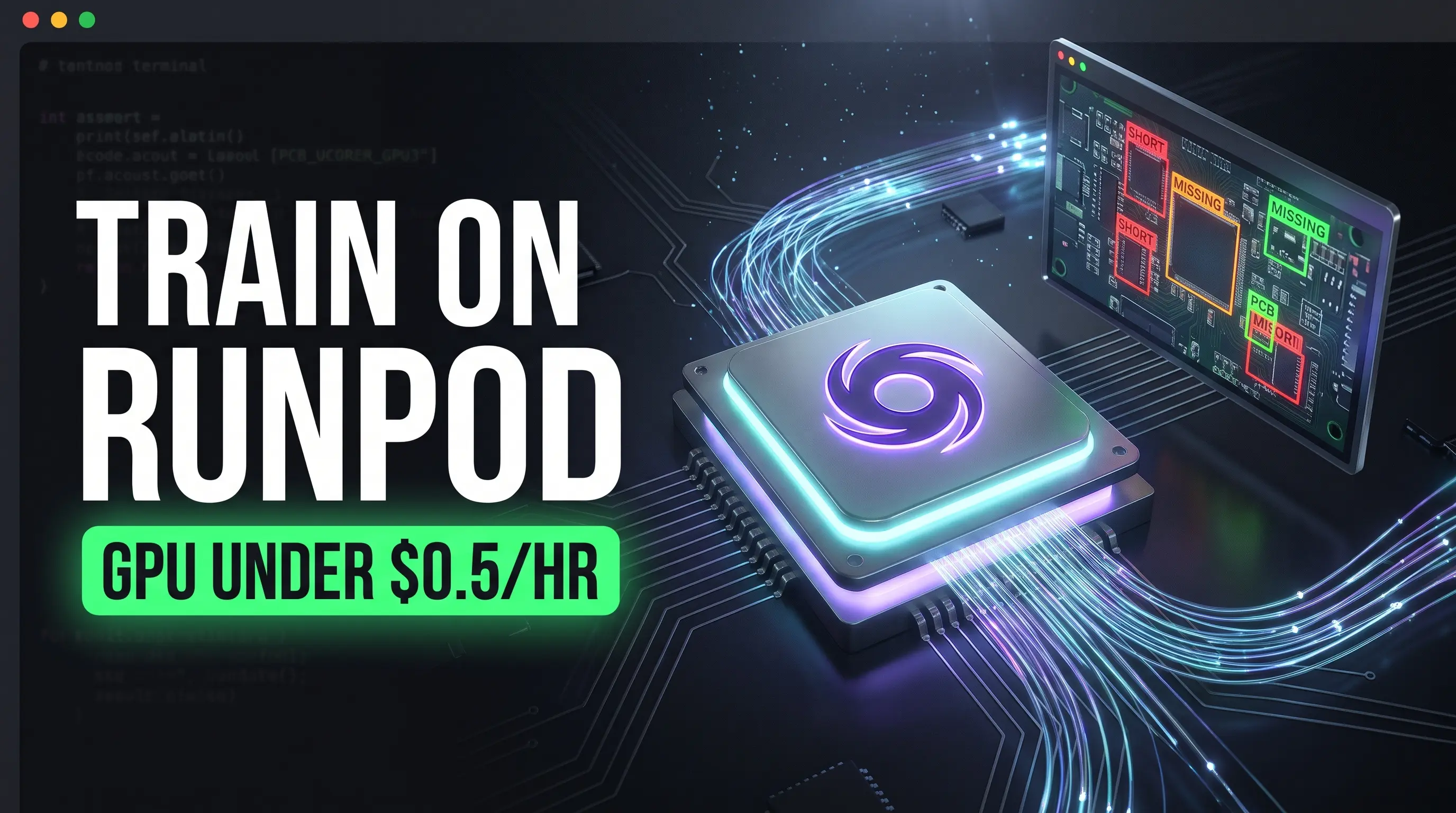
RunPod provides machine learning developers and computer vision engineers with an accessible, high-performance cloud GPU environment designed to train custom AI models without the traditional overhead of enterprise infrastructure. This practical walkthrough focuses on taking an end-to-end computer vision project—specifically training an Ultralytics YOLO model on an industrial PCB defect dataset—from remote cloud GPU execution all the way to local desktop inference. Instead of wrestling with complex cloud dashboards, manual Docker configurations, or underpowered local workstations, you get a clean blueprint for modern deep learning execution.
Training deep learning models locally often hits a hard wall of VRAM bottlenecks, thermal throttling, and multi-hour runtimes that lock up development machines. Major hyperscalers like AWS or Google Cloud offer high-end compute, but their convoluted identity management, quota barriers, and aggressive pricing models make rapid prototyping unnecessarily cumbersome. Mastering this cloud-to-local training cycle equips you with a reproducible, cost-effective workflow that eliminates hardware constraints, safeguards your training state across sessions, and lets you spin up enterprise-grade compute only for the minutes you actually need it.
This guide delivers that workflow through a concrete, production-ready sequence. You will start by preparing your dataset structure and remote path configurations, deploy a pre-configured PyTorch environment on RunPod with an attached persistent volume, and extract your project files directly through JupyterLab.
By bridging scalable cloud computation with lightweight local validation, you gain complete autonomy over your AI development pipeline. Whether you are building automated optical inspection tools for manufacturing, fine-tuning detection models for robotics, or accelerating personal research, utilizing RunPod gives you the compute velocity of an enterprise AI team at a fraction of the cost.
Why RunPod Is Changing the Way Developers Train AI Models Modern artificial intelligence development requires substantial computational muscle, yet traditional cloud infrastructure has become notorious for friction. RunPod addresses this gap by functioning as a developer-first GPU cloud designed specifically for training, fine-tuning, and deploying deep learning models.
At a high architectural level, the system operates on self-contained compute instances known as Pods.
A crucial component of this ecosystem is the separation between ephemeral container disks and network-attached persistent storage. Standard container storage resets whenever an instance terminates, but RunPod allows developers to mount dedicated volume disks directly to designated paths like workspace directories. Datasets, virtual environments, custom codebases, and training checkpoints remain fully intact when instances are stopped or restarted, shielding teams from data loss and avoiding redundant data transfers. The result is a flexible sandbox where engineers can prototype rapidly, scale up compute power during heavy training runs, and shut down instances without losing their work
Runpod Building an End-to-End PCB Defect Detection Pipeline with YOLO and Cloud Compute What Does This Pipeline Actually Build and Why Split Compute Across Cloud and Local? This implementation creates a production-grade automated optical inspection system by decoupling model training from local hardware limitations and inference evaluation. The script architecture uses high-throughput cloud GPUs for the computationally intensive training run, while deploying the validated model locally for lightweight, real-time desktop verification on high-resolution image sets.
The core objective of the code is to solve a classic industrial computer vision challenge: identifying micro-defects in printed circuit boards with high precision. Manual inspection of intricate circuit traces, solder joints, and component pads is slow, error-prone, and expensive. By framing defect identification as a multi-class bounding-box problem across six distinct anomalies—such as mouse bites, open circuits, spurs, and missing holes—the model learns to isolate micro-millimeter flaws at millisecond inference speeds.
Achieving this requires a dual-environment workflow that balances raw compute power with deployment accessibility. On the remote side, the training module configures an Ultralytics YOLO architecture to run inside an optimized cloud environment backed by modern compute accelerators like the NVIDIA RTX A5000 or RTX 4090. Rather than choking a local workstation’s GPU with high batch sizes and high-resolution input tensors, the script offloads the training workload to remote hardware, executing across 100 epochs with mixed-precision FP16 enabled and multi-worker data loaders.
Data persistence and reproducibility form the backbone of the cloud phase. The code explicitly maps dataset configuration and checkpoint destinations to a persistent storage volume rather than an ephemeral container disk. This design guarantees that all hyperparameter states, validation metrics, and top-performing weights are preserved permanently across pod stops and restarts, eliminating the risk of data loss or repeated upload cycles.
Once training converges, the workflow shifts downstream to the local machine for practical deployment. Using a dedicated local Python script, the pipeline loads the exported checkpoint weights into an interactive OpenCV desktop viewer. The inference script parses standard and compressed image formats, calculates class bounding boxes with designated confidence and intersection-over-union thresholds, and projects real-time annotations onto a resilient desktop window, allowing engineers to audit detection quality immediately without lingering cloud costs.
Link to the tutorial here .
Download the code for the tutorial here or here .
Link for Medium users here .
Master Computer Vision
Follow my latest tutorials and AI insights on my
Personal Blog .
Beginner Complete CV Bootcamp
Foundation using PyTorch & TensorFlow.
Get Started → Interactive Deep Learning with PyTorch
Hands-on practice in an interactive environment.
Start Learning → Advanced Modern CV: GPT & OpenCV4
Vision GPT and production-ready models.
Go Advanced → runpod tutorial Preparing Your PCB Dataset and Configuring Cloud Workspace Paths # Comprehensive Guide: Training and Deploying a PCB Defect Detection Model using Runpod and YOLO This guide provides an end-to-end walkthrough for training a high-performance ** PCB Defect Detection ** model on ** Runpod GPU Cloud ** (without Docker ) and transferring the resulting weights for local evaluation on test sets ( including WebP and standard formats ) . Sign up with Runpod at https://runpod.io?ref=a2x9g8hl to access GPU resources. --- ## Step 1. Prerequisites & Local Dataset Preparation Before moving to the cloud, prepare your dataset structure and configuration. ### 1.1 Dataset Structure Organize your dataset locally as follows: pcb-defect-dataset/ ├── train/ │ ├── images/ │ └── labels/ ├── val/ │ ├── images/ │ └── labels/ ├── test/ │ ├── images/ │ └── labels/ └── data.yaml Structuring your dataset correctly before touching any cloud instance ensures seamless execution and avoids path mismatch errors. YOLO architectures require a normalized dataset layout containing separate folders for training, validation, and testing images alongside their corresponding YOLO text annotations. When planning for remote execution on a cloud platform like RunPod , directory paths inside configuration files must point directly to the persistent storage mount rather than local system paths.
The data.yaml file acts as the configuration hub for the Ultralytics engine. In this setup, the root path is explicitly bound to /workspace/data/pcb-defect-dataset, anchoring the runtime directly inside persistent storage. The six target industrial defect classes—mouse_bite, spur, missing_hole, short, open_circuit, and spurious_copper—are explicitly defined to ensure detection heads map predictions to consistent labels during validation passes.
To prevent browser timeouts and file corruption during data transfer, you should never upload thousands of loose image files individually. Packing your entire annotated tree and YAML descriptor into a single .zip archive allows for atomic uploads directly through the web terminal, creating an efficient deployment artifact ready for the cloud.
Want the exact dataset so your results match mine? If you want to reproduce the same training flow and compare your results to mine, I can share the dataset structure and what I used in this tutorial. Send me an email and mention the name of this tutorial, so I know what you’re requesting.
🖥️ Email: feitgemel@gmail.com
What Makes Remote YAML Paths Crucial When Structuring Cloud Datasets? Standard local configuration files refer to local drive letters or relative paths, but remote containers operate in isolated virtual filesystems where code and datasets reside inside fixed directories like /workspace. Mapping the root dataset path directly to the persistent mount path guarantees the remote PyTorch data loaders resolve image indices properly regardless of which directory the command line starts from.
data.yaml file : # ========================================== # Remote data.yaml Configuration for RunPod # ========================================== path: /workspace/data/pcb-defect-dataset train: train val: val test : test names: 0: mouse_bite 1: spur 2: missing_hole 3: short 4: open_circuit 5: spurious_copper A well-structured archive and path definition establish the foundation for remote training. With your archive assembled, you avoid hours of manual data debugging inside the cloud environment.
Archive the Dataset To avoid uploading thousands of individual image files through a browser, compress the directory into a single archive:
On Windows, compress pcb-defect-dataset into pcb-defect-dataset.zip.
Ensure that data.yaml is included inside the archive.
Launching a Zero-Docker GPU Pod with Dedicated Persistent Storage Deploying instances on RunPod removes the friction of configuring local CUDA toolkits, driver updates, and complex multi-stage Dockerfiles. The platform provides pre-built environment templates containing verified PyTorch, CUDA, and Ubuntu installations. Choosing an official PyTorch container gives you an out-of-the-box system that handles hardware acceleration immediately upon startup.
Hardware selection depends on finding the best balance between execution speed and cost efficiency. For training YOLO architectures, GPUs equipped with 24GB VRAM—such as the NVIDIA RTX A5000 or RTX 4090—deliver high performance for less than a dollar per hour. The 24GB frame buffer allows you to run large batch sizes without encountering out-of-memory errors, speeding up each epoch while maintaining stable gradient calculations.
The most critical step in pod deployment is provisioning persistent storage. While container disks are ephemeral and wipe all stored contents when a pod stops, a dedicated Volume Disk mounted to /workspace permanently retains your files. Sizing this volume to 50 GB provides ample headroom to unpack raw images, store caching files, and maintain multiple training experiment outputs across pod restarts.
How Does Persistent Storage Prevent Catastrophic Data Loss During Cloud Training? Ephemeral container disks are tied directly to the lifecycle of the container instance, meaning any stopped pod purges all unstaged changes and checkpoints automatically. Network-attached volume disks persist independently, ensuring that your scripts, unzipped datasets, and generated .pt model weights remain fully intact even when you turn off compute hardware to stop hourly billing.
Pod Configuration & Deployment (Runpod Console) 1. Log in to your Runpod Console. 2. Navigate to Pods - > click Deploy Pod. 3. Enter Pod Name - > " yolo-pcb-trainer " 4. Confirm Base Template: Verify that the selected template displayed at the top is: Runpod Pytorch 2.8 .0 (runpod/pytorch:1.0.2-cu1281-torch280-ubuntu2404). This image includes CUDA 12.8 , PyTorch 2.8 , and Ubuntu 24.04 pre-configured, removing any need for manual Docker builds. 5. Select Target GPU : Choose the GPU configuration based on your budget and workload: - Best Value Option (Recommended): RTX A5000 at $0 .27/hr (24GB VRAM ). or RTX 3090 at $0 .50/hr ( 24GB VRAM ) . Offers 24 GB of memory at the lowest cost, which is sufficient for batch= 32 and fast YOLO training. - Maximum Throughput Option: RTX 4090 at $0 .89/hr (24GB VRAM, 125 GB RAM, 16 vCPUs ) or A40 at $0 .59/hr ( 48GB VRAM ) . Delivers higher iteration speeds due to Ada Lovelace / Ampere compute bandwidth. 6. Add Persistent Storage: Click the " Add volume " link/button (or scroll down to the Persistent Storage / Volume Disk section ). Choose " Volume disk " and set the size to 50 GB. Verify that the Mount Path is set to: /workspace. (The default mount path is /workspace, which is suitable for our use case ). ( This ensures that your datasets, code, and trained weights are saved to persistent disk storage rather than the ephemeral Container Disk, preventing data loss when the Pod stops ) . 7. Verify Disk Allocation & Launch : In the Deploying summary box, verify that Total disk is set to at least 30 GB – 50 GB. Click the final deployment button: Deploy Pod (or Deploy On-Demand ). Wait approximately 30 to 60 seconds until the status under My Pods switches to Running, Upload Dataset to Runpod Persistent Storage : 8.Connect to JupyterLab : In the Runpod Pods dashboard, locate your running Pod. Click the Connect button. In the connection dialog, select Connect to JupyterLab to launch the interface in a new browser tab. 9.Upload the Compressed Dataset In the JupyterLab file explorer (left sidebar ), ensure you are in the root /workspace directory. Click the Upload Files icon (upward-pointing arrow ) on the toolbar. Select your local archive file: pcb-defect-dataset.zip. Wait for the upload process to complete. Follow the blue progress bar at the bottom of the JupyterLab 9.Upload the Compressed Dataset : In the JupyterLab file explorer (left sidebar ), ensure you are in the root /workspace directory. Click the Upload Files icon (upward-pointing arrow ) on the toolbar. Select your local archive file: pcb-defect-dataset.zip. Wait for the upload process to complete. Follow the blue progress bar at the bottom of the JupyterLab Open Terminal, Extract Files, and Install Dependencies : In JupyterLab, navigate to File - > New - > Terminal (or open it from the main Launcher ). Execute the following commands to install unzip, create the data directory, and extract the dataset: - Bash : cd /workspace apt-get update && apt-get install -y unzip mkdir -p /workspace/data unzip pcb-defect-dataset.zip -d /workspace/data/ - Verify that data.yaml is present at the target location: ls -la /workspace/data/pcb-defect-dataset/ - Install the required YOLO and computer vision packages: pip install --upgrade pip pip install ultralytics== 8.4 .179 Executing these terminal commands inside the JupyterLab environment prepares your storage volume. You now have a persistent environment that retains installed packages and extracted datasets permanently.
Executing Cloud GPU Training with High-Throughput Optimization Executing deep learning training on RunPod requires structuring your script to take full advantage of allocated hardware. Moving beyond default configurations allows you to maximize GPU utilization, keep CUDA cores fully saturated, and avoid pipeline bottlenecks caused by stalled data loading loops.
The training script initializes the YOLO architecture and passes custom runtime hyperparameters. With an RTX A5000 offering 24GB of memory, the batch size can be scaled to 32 at a 640×640 image resolution. Increasing the worker count to 8 leverages the cloud instance’s multi-core vCPUs, streaming preprocessed batches directly into GPU memory without stalling training iterations.
Enabling mixed precision (amp=True) accelerates tensor operations using 16-bit floating-point arithmetic while protecting gradient accuracy. Combined with an early-stopping patience mechanism, the training routine automatically halts when validation improvements plateau, writing the optimal weights directly to your persistent /workspace/runs folder.
Why Does Adjusting DataLoader Workers Maximize Cloud GPU Utilization? A single data loading thread forces powerful cloud GPUs to sit idle while waiting for the CPU to decode, augment, and transfer images into memory. Setting multiple worker threads enables parallel CPU preprocessing, ensuring that the GPU receives a continuous batch stream and runs at peak compute capacity throughout every epoch.
Upload training script (train_runpod.py) to /workspace directory: In the file browser on the left panel, make sure you are in the root directory (the top level showing /workspace).
In JupyterLab, click the Upload Files icon again and select your local train_runpod.py file.
Ensure that train_runpod.py is now present in the /workspace directory.
train_runpod.py file :
import os from pathlib import Path from ultralytics import YOLO def main () : # 1. Dataset configuration path on the cloud server data_yaml_path = Path ( "/workspace/data/pcb-defect-dataset/data.yaml" ) if not data_yaml_path.exists () : print (f "Error: {data_yaml_path} not found. Check the path." ) return # 2. Initialize the YOLO model architecture model_name = " yolo26m.pt " print (f "[Runpod] Loading base architecture: {model_name}..." ) model = YOLO ( model_name ) # 3. High-performance cloud training settings for RTX A5000 (24GB VRAM) print ( "[Runpod] Starting training on Cloud GPU..." ) results = model.train ( data = str ( data_yaml_path ) , epochs = 100 , batch = 32 , # Increased batch size to leverage 24GB VRAM imgsz = 640 , workers = 8 , # Multi-threaded dataloader using cloud vCPUs device = 0 , # First available cloud GPU amp = True, # Mixed precision FP16 for faster execution patience = 15 , # Early stopping patience save = True, project = " /workspace/runs/pcb_train " , name = " runpod_pcb_exp " , exist_ok = True ) best_model_path = Path ( "/workspace/runs/pcb_train/runpod_pcb_exp/weights/best.pt" ) print (f "[Runpod] Training completed! Best weights: {best_model_path}" ) if __name__ == " __main__ " : main () Once the script finishes its epochs, the top validation checkpoint saves to best.pt. You can download this file directly via JupyterLab’s file manager for local deployment.
Run the code from the console to start training : cd /workspace python train_runpod.py Download the trained weights for local evaluation : – Open the JupyterLab file browser in the left sidebar.
– Navigate to:
/workspace/runs/pcb_train/runpod_pcb_exp/weights/
– Locate the two checkpoint files:
best.pt: Weights corresponding to the highest validation score (target deliverable).
– Right-click on best.pt and select Download to save the file locally.
Configuring a Local Inference Environment with Isolated Dependencies (Test the model) Deploying models locally gives you rapid feedback without continuing to spend cloud compute budget. Running inference on local desktop workstations requires creating an isolated Python environment to prevent dependency conflicts between different deep learning packages and system libraries.
Using Conda, you can spin up an isolated workspace locked to Python 3.11. This prevents system-wide package corruption and guarantees that conflicting packages—such as differing versions of NumPy, OpenCV, or torch—remain strictly confined to this specific evaluation environment.
The local workstation requires explicit CUDA matching to ensure inference runs on your local GPU rather than falling back to slower CPU execution. Installing PyTorch 2.7 with CUDA 12.6 wheels alongside matching Ultralytics binaries ensures the exported weights execute with native hardware acceleration.
Why Is an Isolated Conda Environment Preferable for Desktop Model Evaluation? Deep learning frameworks frequently require specific CUDA runtimes and binary dependencies that conflict across multiple projects. Isolating packages within a dedicated Conda environment allows you to install exact framework revisions without breaking existing development pipelines or risking driver collisions on your workstation.
# ========================================== # Local Conda Environment Setup # ========================================== ### Create an isolated Python environment for testing conda create -n Yolo2026-for-runpod python= 3.11 -y ### Activate the newly created evaluation environment conda activate Yolo2026-for-runpod ### Install CUDA-accelerated PyTorch binaries locally pip install torch== 2.7 .0 torchvision== 0.22 .0 torchaudio== 2.7 .0 --index-url https://download.pytorch.org/whl/cu126 ### Install matching Ultralytics package version pip install Ultralytics== 8.4 .179 With the local environment activated and dependencies installed, your computer is ready to execute hardware-accelerated computer vision models on test image directories.
Building an Interactive Local OpenCV Defect Inspection Suite Evaluating detection models on real-world industrial images requires an intuitive interface that allows you to inspect bounding boxes and confidence scores interactively. While command-line metrics such as mean Average Precision (mAP) provide statistical summaries, visually inspecting detections reveals how well the model handles complex edge cases and false positives.
This evaluation script searches directories for all standard image formats—including .jpg, .png, .bmp, and compressed .webp files. It recursively scans subdirectories to ensure every available sample passes through the model, applying defined confidence and intersection-over-union thresholds to filter out noisy predictions.
To avoid OpenCV window freezes and graphical interface crashes on Windows desktop systems, the code reuses a single named GUI window. The application overlays clean bounding boxes, displays class labels, and prints detailed detection metadata to the console while giving you full keyboard control to step through test images at your own pace.
How Does Reusing a Single Named Window Prevent GUI Freezes in OpenCV? Creating and destroying graphical windows inside a rapid loop frequently leads to thread desynchronization and interface freezes on desktop operating systems. Initializing a single persistent window with cv2.namedWindow outside the loop and updating its canvas in place maintains stable thread execution and responsive keyboard event handling throughout testing.
Test Images :
spur short ### Import glob module for pattern-based file searching import glob ### Import Path class for cross-platform directory navigation from pathlib import Path ### Import OpenCV computer vision library for rendering import cv2 ### Import YOLO class from Ultralytics package from ultralytics import YOLO # ========================================== # 1. Configuration & Paths # ========================================== ### Define path to downloaded cloud model weights WEIGHTS_PATH = Path ( r "D:/Temp/Models/runpod/best.pt" ) ### Define directory containing evaluation images TEST_IMAGES_DIR = Path ( r "cloud-gpu-ai-deployment/RunPod/Code-Localy/test_images" ) ### Set minimum prediction confidence score threshold CONF_THRESHOLD = 0.40 ### Set Intersection over Union threshold for Non-Maximum Suppression IOU_THRESHOLD = 0.45 ### Define supported image extensions for batch parsing IMAGE_EXTENSIONS = [ " *.jpg " , " *.jpeg " , " *.png " , " *.bmp " , " *.webp " , " *.tif " , " *.tiff " ] ### Define evaluation workflow function def run_pcb_inference () : ### Verify trained weight checkpoint exists locally if not WEIGHTS_PATH.exists () : ### Print error notification if weights are missing print (f "Error: Weights file not found at {WEIGHTS_PATH}" ) ### Exit inference function return ### Log model loading process print (f "Loading trained model from: {WEIGHTS_PATH}..." ) ### Instantiate YOLO model with trained weights model = YOLO ( str(WEIGHTS_PATH ) ) ### Initialize list for holding discovered image paths test_images = [] ### Loop through defined extensions to collect test samples for ext in IMAGE_EXTENSIONS: ### Scan root test image directory with lowercase extension test_images.extend(glob.glob(str(TEST_IMAGES_DIR / ext ))) ### Scan root test image directory with uppercase extension test_images.extend(glob.glob(str(TEST_IMAGES_DIR / ext.upper () ))) ### Scan nested images subdirectory with lowercase extension test_images.extend(glob.glob(str(TEST_IMAGES_DIR / " images " / ext ))) ### Scan nested images subdirectory with uppercase extension test_images.extend(glob.glob(str(TEST_IMAGES_DIR / " images " / ext.upper () ))) ### Deduplicate and sort collected file paths alphabetically test_images = sorted ( list(set(test_images ) )) ### Check if any test images were located if not test_images: ### Print warning if directory contains no valid image files print (f "No valid image files found in: {TEST_IMAGES_DIR}" ) ### Abort inference function return ### Print summary of discovered images to console print (f "Found {len(test_images)} test images. Starting evaluation..." ) ### Output keyboard controls to the user print ( "Controls:" ) ### Print key instruction for navigating to next image print ( " - Press any key (except 'q' or ESC) to display next image" ) ### Print key instruction for terminating the viewer print ( " - Press 'q' or 'ESC' to exit viewer\n" ) ### Define stable title name for GUI window window_name = " PCB Defect Detection Viewer " ### Create persistent OpenCV window with manual resize capabilities cv2.namedWindow(window_name, cv2.WINDOW_NORMAL ) ### Set display dimensions of the interface window cv2.resizeWindow(window_name, 900 , 900 ) ### Iterate through every discovered image path for idx, img_path in enumerate ( test_images, start= 1 ) : ### Open try block to gracefully handle corrupted images try: ### Run YOLO model prediction on input image results = model.predict ( source = img_path, conf = CONF_THRESHOLD, iou = IOU_THRESHOLD, imgsz = 640 , device = 0 , verbose = False, ) ### Extract first result container from prediction list result = results[ 0 ] ### Extract detected bounding boxes boxes = result.boxes ### Print image progress and detection count to console print (f "[{idx}/{len(test_images)}] File: {Path(img_path).name} | Detections: {len(boxes)}" ) ### Check if any bounding boxes exceed threshold if len(boxes ) > 0: ### Iterate through individual detected bounding boxes for b in boxes: ### Extract integer class identifier cls_id = int ( b.cls[0].item ()) ### Resolve class name string from model dictionary cls_name = model.names[cls_id] ### Extract floating point confidence score conf = float ( b.conf[0].item ()) ### Format bounding box coordinate list xyxy = [round(x, 1 ) for x in b.xyxy[0].tolist () ] ### Print detection details to console print (f " -> [{cls_name}] (Confidence: {conf:.2%}) BBox: {xyxy}" ) else: ### Print message indicating clean board state print ( " -> Clean board / No defects identified above threshold." ) ### Generate annotated frame overlaying bounding boxes annotated_frame = result.plot ( line_width = 2 , font_size = 0.5 ) ### Verify rendered frame contains valid image data if annotated_frame is None or annotated_frame.size == 0 : ### Warn user of frame rendering failure print (f " [Warning] Frame rendering failed for {Path(img_path).name}. Skipping display." ) ### Skip forward to next iteration continue ### Render annotated image inside the persistent window cv2.imshow(window_name, annotated_frame ) ### Update window title bar with file progress metadata cv2.setWindowTitle(window_name, f " PCB Defect Detection - [{idx}/{len(test_images)}] {Path(img_path).name} " ) ### Wait for user keypress input key = cv2.waitKey ( 0 ) & 0xFF ### Check if pressed key corresponds to quit or escape if key == ord ( "q" ) or key == 27 : ### Log early exit event to terminal print ( "\nEvaluation loop interrupted by user." ) ### Break out of display loop break ### Handle runtime exceptions without terminating the application except Exception as e: ### Log processing failure with specific image path print (f " [Error processing image {Path(img_path).name}]: {e}" ) ### Continue to next image in queue continue ### Destroy all open OpenCV graphical windows cv2.destroyAllWindows () ### Confirm conclusion of evaluation session print ( "Testing session finished." ) ### Check if script is run as main entrypoint if __name__ == " __main__ " : ### Run local inference pipeline run_pcb_inference () The interactive viewer provides real-time verification of model performance. By stepping through detections image by image, you can quickly evaluate class precision, verify bounding box tightness, and catch false positives before deploying the model into production.
Result :
PCB spur PCB short Frequently Asked Questions What is the primary advantage of training YOLO models on RunPod? RunPod provides instant access to enterprise GPUs like the RTX A5000 (24GB VRAM) for under $1/hour. This eliminates local memory constraints and speeds up training without locking up your workstation.
Why is persistent volume storage necessary when deploying RunPod instances? Ephemeral container storage wipes clean whenever a pod stops. Attaching a persistent volume to /workspace ensures your datasets, scripts, and trained model weights remain preserved across restarts.
How do I avoid manual Docker setup when launching instances on RunPod? Select pre-built official templates such as the PyTorch 2.8 image. These provide Ubuntu, CUDA, and PyTorch out of the box so you can start training immediately.
Why does data.yaml use an absolute path like /workspace/data/? Inside cloud containers, relative paths can cause resolution errors depending on execution context. Specifying absolute paths tied to /workspace ensures data loaders locate image splits reliably.
What does enabling mixed precision (amp=True) do during YOLO training? Automatic Mixed Precision runs calculations in 16-bit float format alongside 32-bit floats. This lowers GPU memory footprint and speeds up execution without sacrificing model precision.
How do multi-worker data loaders improve training throughput? Using multiple worker threads enables the CPU to preprocess and augment image batches in parallel, preventing GPU starvation and maximizing compute efficiency.
What are the six PCB defect classes detected by this model? The model identifies mouse bites, spurs, missing holes, short circuits, open circuits, and spurious copper anomalies across printed circuit board assemblies.
How can I prevent OpenCV GUI windows from crashing during local batch inference? Create a single named window before iterating over images rather than creating and destroying windows repeatedly. This maintains stable event loop execution.
Can the local OpenCV inference script process WebP images? Yes. The script matches multiple file extensions including .jpg, .png, .bmp, .tif, and compressed .webp files across test image folders.
When should I stop my RunPod instance to avoid unnecessary billing? Stop your pod via the dashboard as soon as training completes and you have downloaded your best.pt file. Persistent storage retains your data at a nominal storage rate.
Mastering the Cloud-to-Desktop Vision Engineering Pipeline Decoupling compute-heavy model training from desktop evaluation provides a practical, scalable blueprint for modern computer vision engineering. By moving your training workloads onto RunPod , you can harness high-memory GPUs like the RTX A5000 or RTX 4090 on demand, sidestepping local hardware limitations and avoiding steep enterprise cloud overhead.
Throughout this implementation, you configured persistent volume disks to protect your data, trained an Ultralytics YOLO model on complex industrial PCB defects with mixed precision, and extracted the top validation weights without building custom Docker containers. Transitioning back to your local workstation, you configured an isolated Conda environment and launched an OpenCV inspection viewer capable of parsing diverse image formats at low latency.
This architecture offers a repeatable foundation for your AI projects. Whether you are building automated defect detection pipelines for electronics manufacturing, training custom object detectors for robotics, or accelerating personal deep learning research, combining affordable cloud compute with local verification gives you the tools to iterate quickly and deploy with confidence.
Connect : ☕ Buy me a coffee — https://ko-fi.com/eranfeit
🖥️ Email : feitgemel@gmail.com
🌐 https://eranfeit.net
🤝 Fiverr : https://www.fiverr.com/s/mB3Pbb
Enjoy,
Eran
 Skip to content